
Use a device scan whenever you want to review your installed apps. You can also include downloaded APKs and archives in accessible shared folders. Manual scanning is available in both Free and Pro.
Choose the scan scope
Tap Start on the home screen. If file access is requested, choose whether to include downloaded APKs and archives or check installed apps only. Denying file access does not prevent the installed-app check; it means downloaded files are outside that scan’s coverage.
For one particular download, use Menu → Check a file. This separate check does not install or remove the selected file.
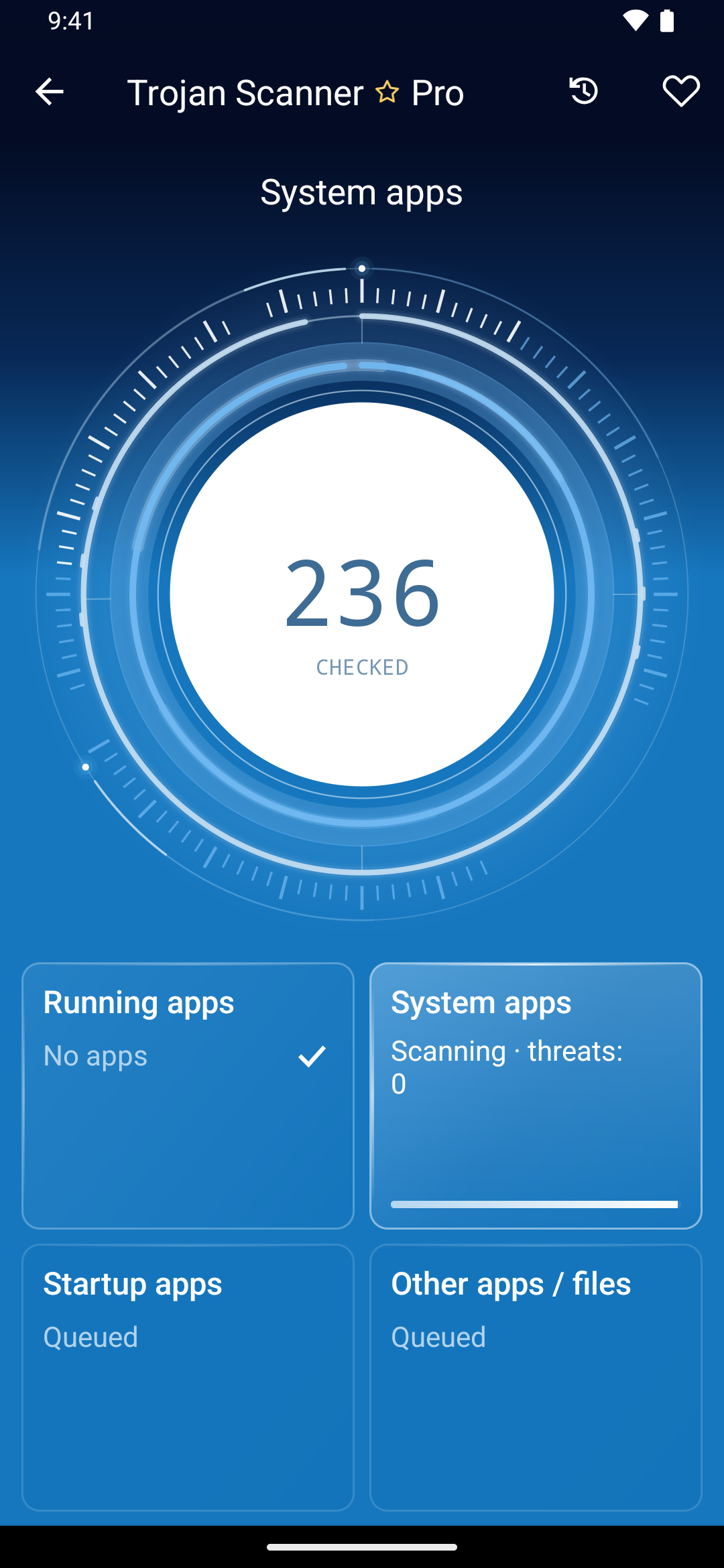
Pause and continue
- While a scan is active, use Android Back to request a pause. Wait for the paused state; preparation or the current item may need to finish first.
- Choose Back to Scan to continue the same scan.
- If you choose to review findings before the remaining items are checked, treat the result as incomplete. Start a new scan when you need a complete check.
Keep using your phone
An active device scan can continue when you press Home or lock the screen. With notifications permitted, you can follow progress and receive the result when the app is in the background. Tap its notification to return.
Android may interrupt background work, especially after a force stop or under battery restrictions. Reopen Trojan Scanner and confirm its final status; leaving the screen does not itself confirm completion.
Why the next scan can be faster
Trojan Scanner can reuse successfully read information for unchanged apps, reducing repeated work. It still checks that information against the current detection rules. Changed apps are read again. Scan time varies with your device, files and optional cloud checks.
If a scan cannot finish
- Wait for any active threat database download to complete, then try again.
- For an unreadable download, obtain a complete copy from a trusted source.
- Review Not checked items and file-access messages; an unreadable item is not a threat detection.
- If the problem repeats, contact Support with a screenshot, app version, Android version and the last visible stage.