
Trojan Scanner lets you begin with free device and file checks. A Gridinsoft account is optional for local scanning; Pro is an optional upgrade for advanced anti-spy tools and automation.
Choose an official source
- Google Play: open Trojan Scanner on Google Play and follow the install controls offered for your device.
- Gridinsoft website: use the official Trojan Scanner product page. Follow Android’s confirmation prompts for its APK. If Android asks to allow installation from that browser or file manager, grant it only for the trusted installation source.
Trojan Scanner supports Android 6.0 and later on compatible devices. Use the version shown in your installed app or its store page; avoid unofficial download mirrors.
Open the scanner
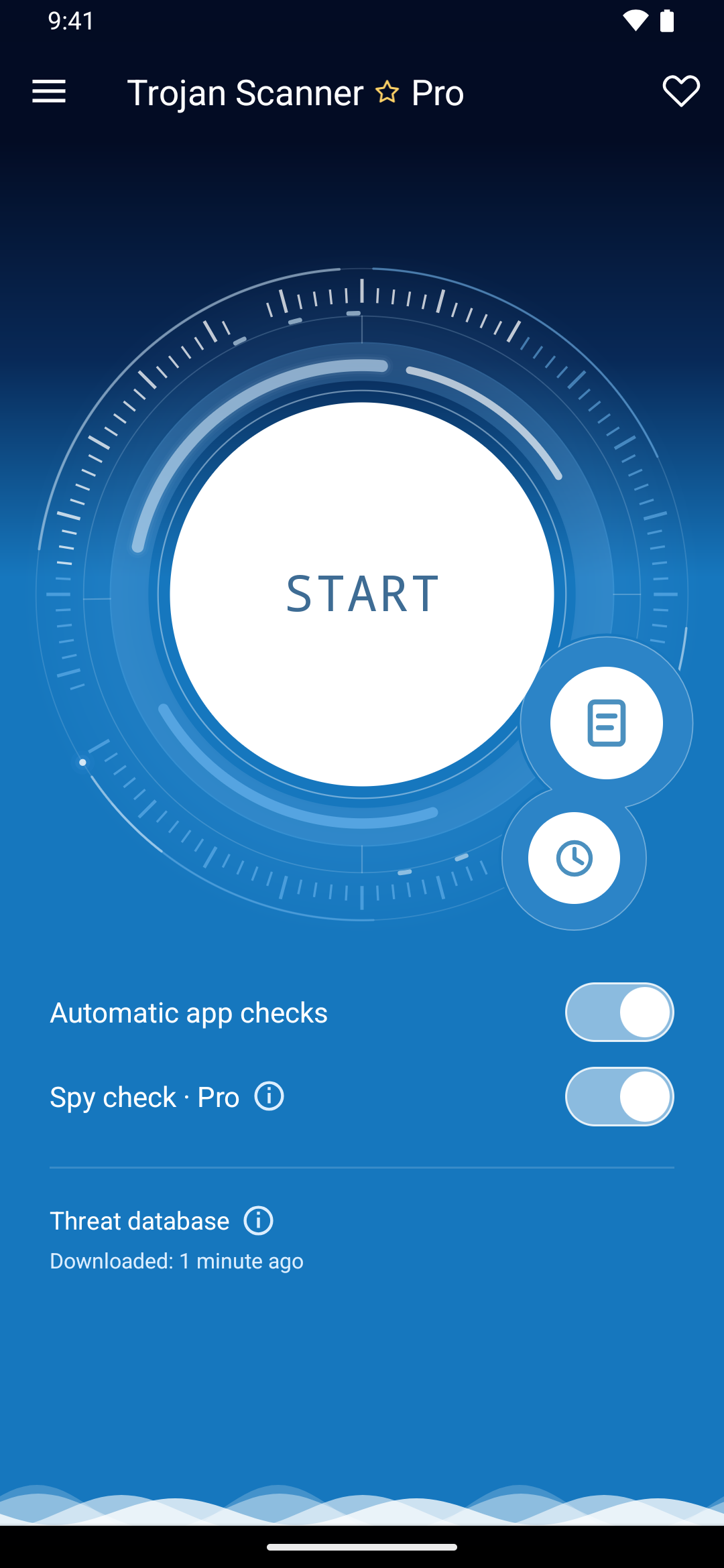
- Launch Trojan Scanner and let the initial threat database download finish.
- Allow notifications if you want background progress and result alerts.
- Tap Start. If asked about file access, choose whether to include downloaded APKs and archives or check installed apps only.
See your first scan for result and cleanup guidance. You can also choose Check a file from the menu before opening a download.
Choose the extras you want
The optional Gridinsoft account unlocks free cloud checks after sign-in and consent. It is separate from a Google Play purchase.
Pro adds Anti Spy, link checking, scheduled scans and automatic database updates. Explore Free versus Pro before choosing the annual plan. Paid access and price are shown in the app through Google Play.
Keep your installation current
Update from your installation source and refresh the threat database separately. Do not uninstall the scanner just to apply an update: local reports and preferences may be lost. Follow the update guide.