
An app that is hard to find can still have access to sensitive information. Anti Spy in Trojan Scanner Pro helps you review hidden apps and potentially risky combinations of screen, notification, microphone and location access. It gives you reasons to investigate, so you can make a more informed decision about the apps on your phone.
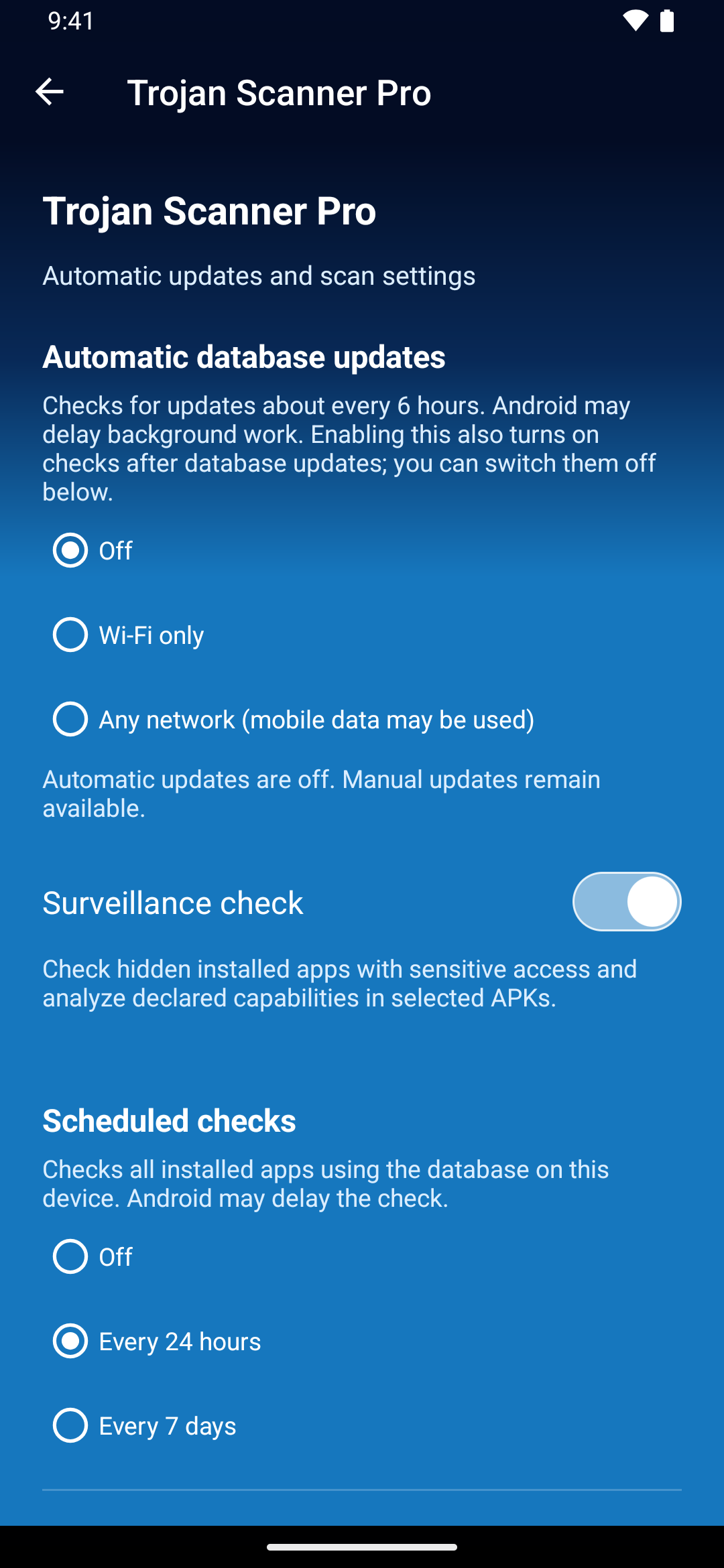
Enable Surveillance check
- Make sure Pro is active.
- Open Menu → Settings → Trojan Scanner Pro.
- Turn on Surveillance check. You can also use the Spy check · Pro switch on the home screen.
- Return to the home screen and tap Start. Wait for the scan to finish, then review any potential surveillance findings.
Anti Spy is off until you enable it. With it enabled, the analysis can also run during automatic new-app checks and Pro scheduled checks. Keep Automatic app checks enabled if you want those new and updated apps checked.
Understand the warning
For installed apps, Anti Spy looks for hidden apps with sensitive access, such as an enabled accessibility service that can read screen content, notification access that may expose messages, or a combination of microphone and background location access. The finding explains the relevant access instead of asking you to rely on a name alone.
Potential surveillance risk does not prove that the app is spying. Legitimate accessibility tools, device-management apps and other services can need sensitive access. Consider whether you recognize the app, trust its source and expect it to have those capabilities.
Check an APK before installation
Use Check a file to inspect a downloaded APK or supplied APK set. When Pro and Surveillance check are enabled, supported APKs receive Anti Spy analysis alongside the available local and cloud checks.
For an uninstalled APK, the warning describes declared capabilities. It does not establish that Android has granted those permissions or that the app has used them. Review the individual check statuses if the result is incomplete.
Choose the next step
- If you recognize the app, review its sensitive access in Android settings and decide whether that access is still necessary.
- If you do not trust an installed app, read the detection details and follow the removal instructions. Android requires confirmation before uninstalling.
- If an APK looks suspicious, leave it uninstalled while you investigate. If you are unsure, contact Support with the app/package name, warning and a screenshot.
After changing access or removing an unwanted app, run a fresh check. Use Protection history and What changed to review saved results and observed changes.