
Trojan Scanner brings app checks, file checks and a clearer view of changes on your Android device into one place. Start with the free scanner; choose Pro when you want advanced anti-spy analysis and less routine work.
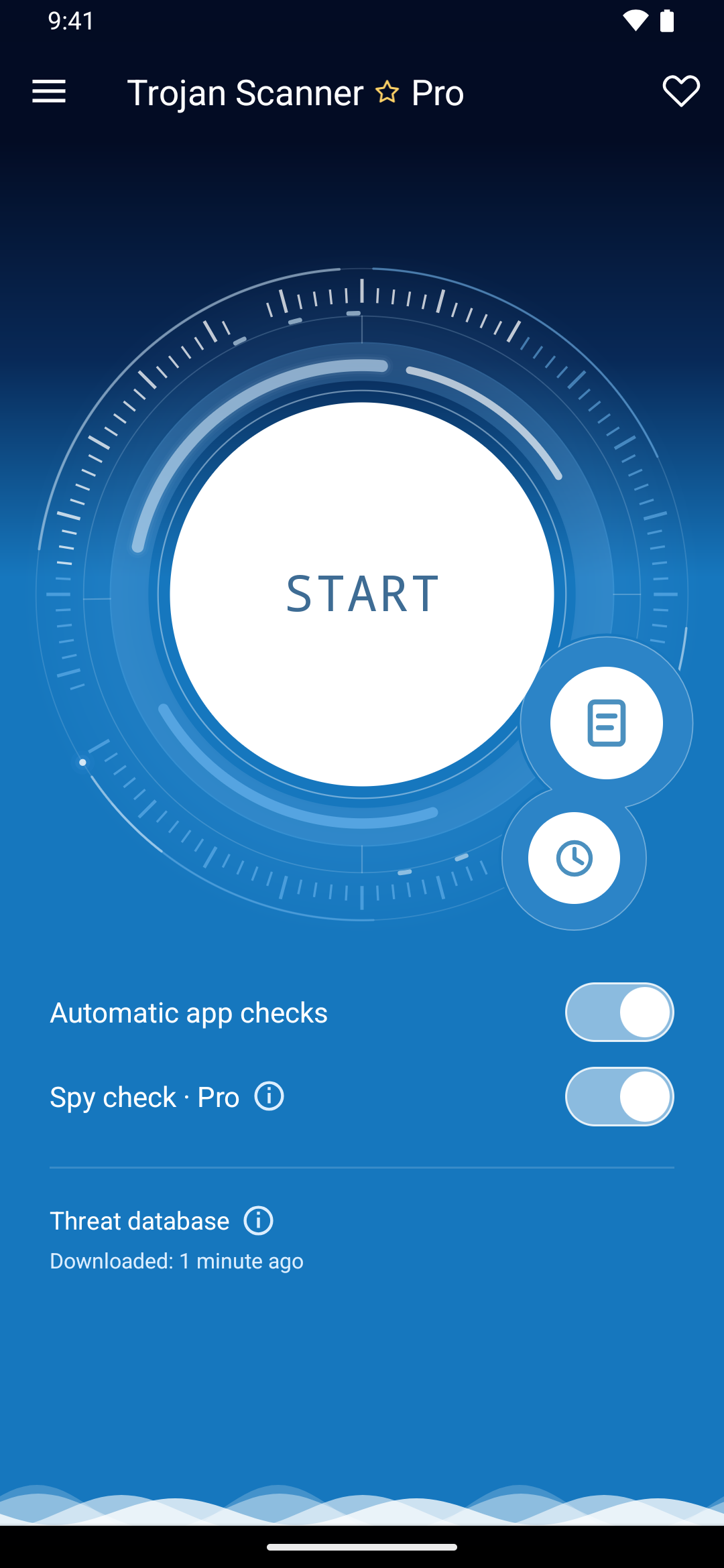
Start with useful protection for free
- Scan your device: check installed apps and, with file access, downloaded APKs and archives in accessible shared folders.
- Check before you open: choose a file, APK or archive for a separate check without installing it.
- Check new apps automatically: new and updated apps can be checked in the background using the database on your device.
- Understand the result: see findings, incomplete checks and saved activity in Protection history.
- See what changed: review newly observed apps, special access and findings since a completed device check.
- Add free cloud checks: sign in to a Gridinsoft account and choose which optional cloud checks to enable.
Let Pro do more of the routine
Pro adds Anti Spy to highlight suspicious combinations of app capabilities, link checks before you open a suspicious site, scheduled scans and automatic threat database updates. The Pro interface also gives the scanner a distinctive darker appearance.
Choose the features that matter to you and enable them in Pro settings. See the Free and Pro comparison for a clear breakdown.
Know what each check tells you
A threat detection, a potential permission risk and an incomplete check mean different things. Trojan Scanner explains the available results and asks before removing an ordinary app or deleting a file. A result with no detections applies to the checks that completed; it cannot guarantee that a device or file is safe.
The scanner does not read your messages automatically, monitor browser traffic or provide a VPN. Web Protection is a separate Gridinsoft product.