
Trojan Scanner separates a scan’s findings from its coverage. Read both: a result may contain useful completed checks while some items remain unchecked. Protection history saves activity; What changed helps you decide what to review next.
Understand the result
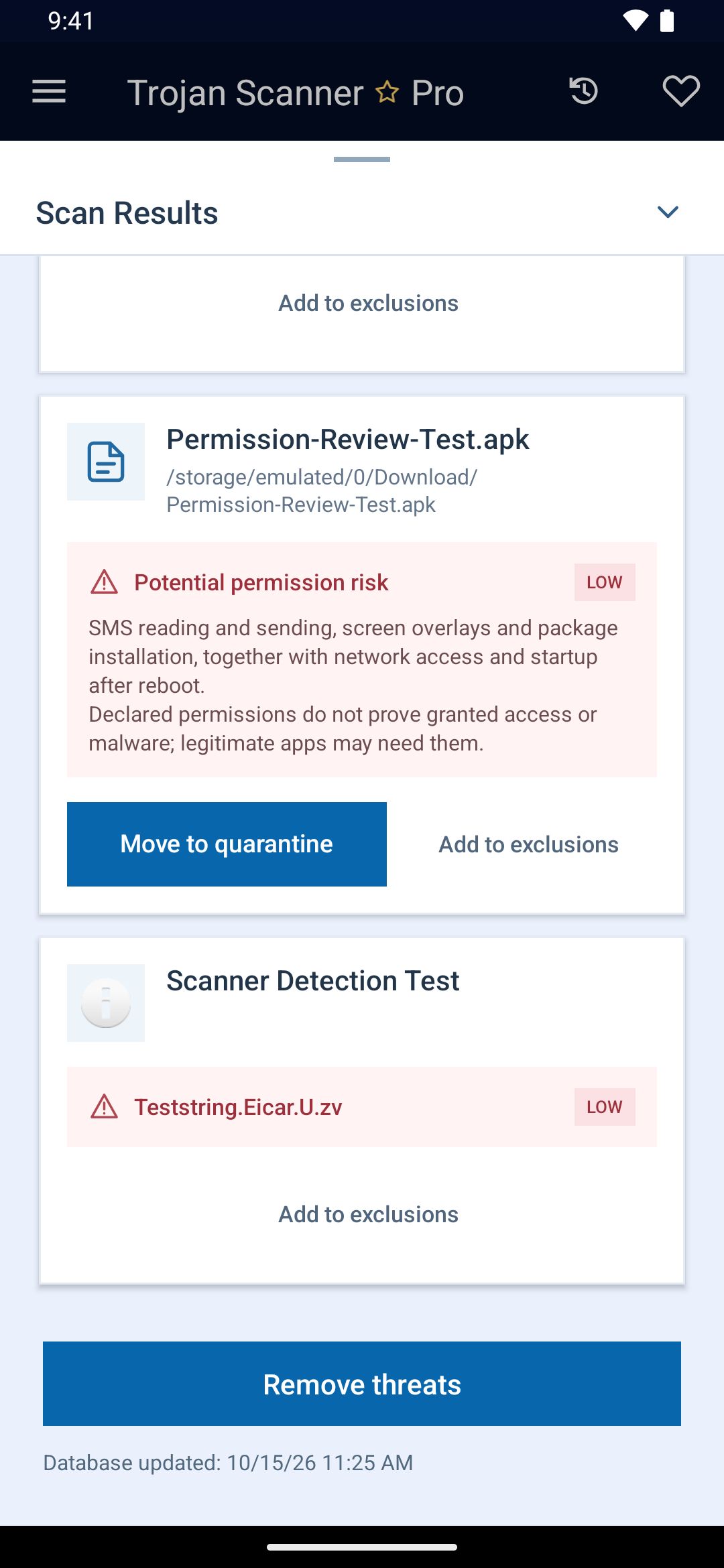
- No threats detected: the completed checks found no matching threat. This is not a guarantee of safety.
- Threat detected: an item matched a detection rule in a local or enabled cloud database. Open its details before choosing an action.
- Potential permission risk: a combination of declared permissions deserves review. Declared permissions do not prove access was granted or that the app is malicious.
- Potential surveillance risk: Pro Anti Spy found a suspicious combination of capabilities. Review the app and its access; the warning does not establish that spying occurred.
- Incomplete or partially completed: some requested checks could not finish. There is no safety conclusion for items that were not checked.
Read cleanup counts correctly
The main Threats count groups findings. Open View details to distinguish known-threat matches from potential permission or surveillance risks.
Removed counts successful treatment. Excluded means the item was skipped, not removed. Detections left and Not checked need separate attention. Canceling Android’s uninstall confirmation leaves the app installed and the finding unresolved.
See how to manage each finding. Test-sample screenshots in these guides demonstrate the controls; your detections and counts will differ.
Review Protection history
Tap the Protection history shortcut beside Start, or open it from the menu. It brings together manual scans, automatic checks of new or updated apps, and saved Pro background scans.
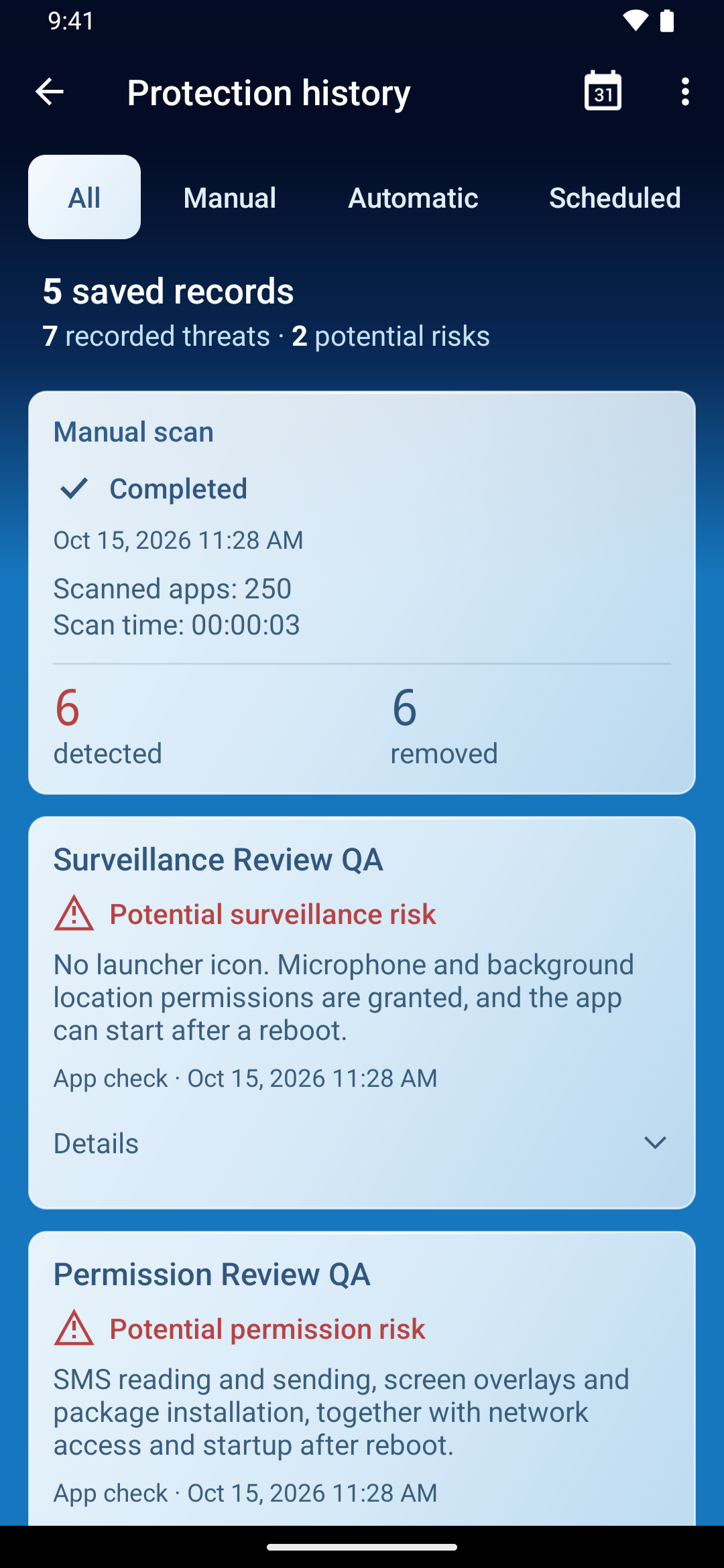
- Choose All, Manual, Automatic or Scheduled.
- Use With findings or a date filter to narrow the list.
- Open an entry to review its available details. Older per-app details may have expired.
A repeat check of the same app is still a separate activity. Manual report retention is controlled in Settings. An empty filtered list means no matching saved activity; try another source or date. Saved history remains readable after Pro ends.
Use What changed
Tap the other small home-screen shortcut, What changed. Long-press either small icon to see its label. Complete a device check first to establish a reference. The view highlights newly observed app installations or reinstallations, newly enabled special access and saved findings.
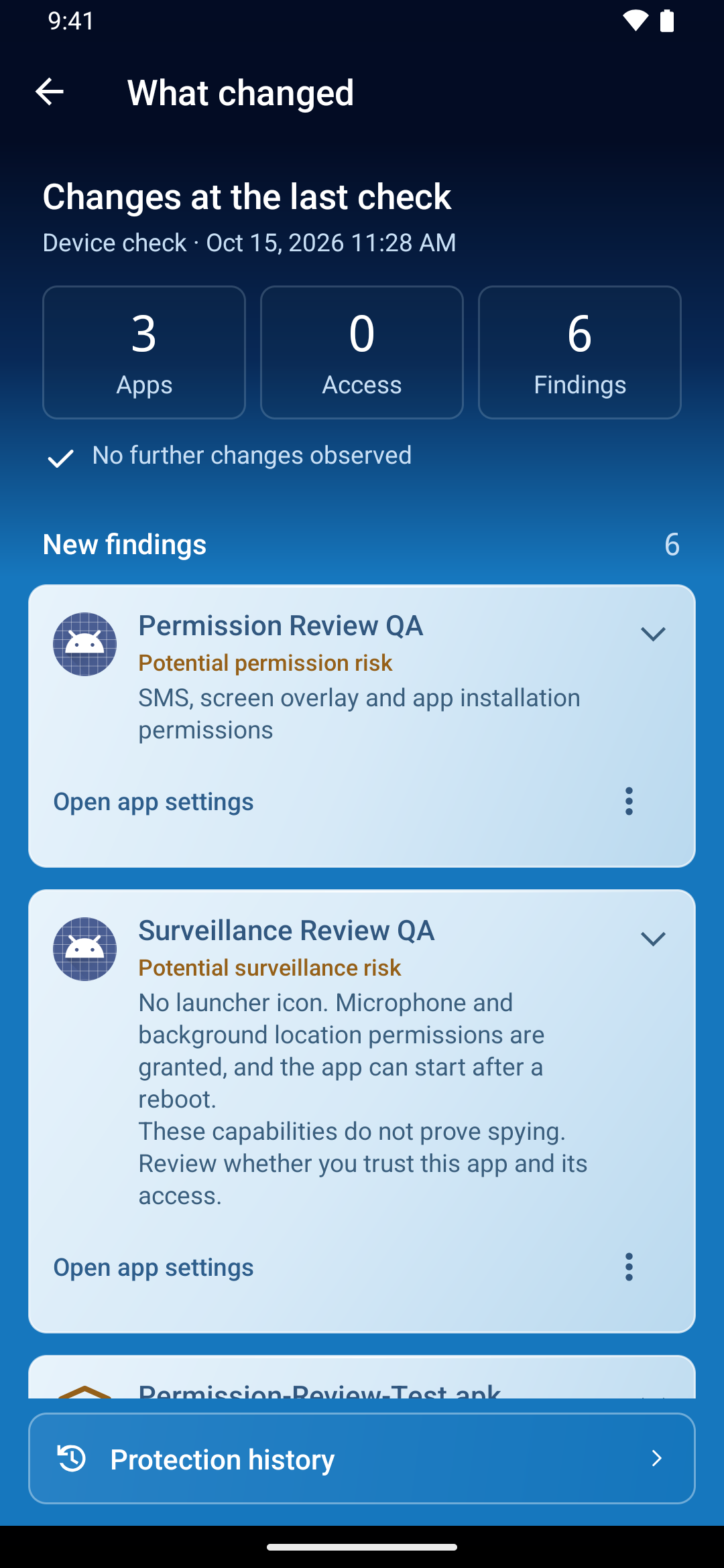
Expand a card for details, open the app’s Android settings, or review an available removal or exclusion action. Screen access through accessibility, notification access and device administrator access may be legitimate; check whether you intended to enable them.
Opening this view does not run a fresh scan. A stopped or incomplete scan does not replace the completed-check reference. Changes saved at the last completed check stay available separately from newly observed changes.