
A Gridinsoft account adds optional cloud checks to Trojan Scanner Free and Pro. File checks can compare fingerprints with the cloud threat database, while app analysis can review domains embedded in APKs. These features offer more information for your decision without uploading the files themselves. Local scanning remains available without signing in.
Connect your account
- Open the menu and tap Sign in.
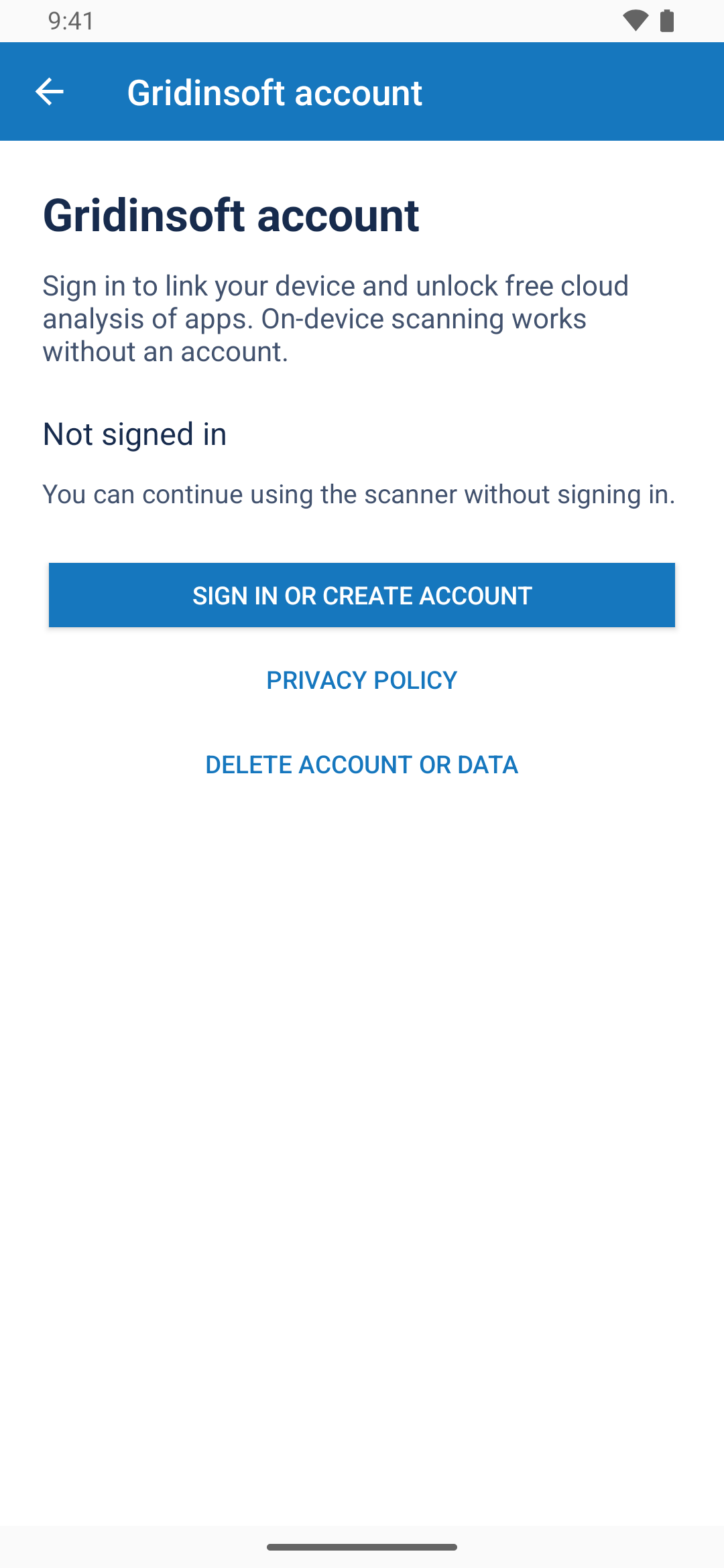
- On the Gridinsoft account screen, tap Sign in or create account. Read the connection information and choose Continue sign-in.
- Complete the sign-in in your browser and approve linking this installation.
- Return to Trojan Scanner and confirm that the account is connected.
Connecting gives the app your name and email and registers this installation with its device name. Scan history and scan results are not synchronized to your member account. No Pro subscription is required for the cloud checks described here.
Enable Cloud file check
- Open Menu → Settings → Detection management.
- Turn on Cloud file check.
- Read and accept the consent prompt if you want the feature enabled.
- Run a manual scan or use Check a file. Review the cloud status alongside the local result.
With your consent, Scanner sends file fingerprints and sizes to compare against the cloud database. A fingerprint can identify a file; the file, its name and its path are not uploaded. If the cloud check cannot finish, the local result is preserved. Check your connection/account and retry rather than interpreting an unavailable layer as clean.
Enable analysis of app domains
In Settings → Detection management, enable Advanced app analysis and review its separate consent prompt. With automatic app checks enabled, Scanner can check domains found in new or updated non-system apps. It can also include this analysis in Pro scheduled installed-app checks.
For a selected APK, use Check APK domains when the file result offers it. Only the domains found inside the APK are sent; the APK file and app name stay on the device. A domain found as text is a risk signal, not proof that the app contacted it. Hidden or generated links may not be found.
Advanced app-domain analysis is separate from the manual Start scan and from the Pro checker for shared or pasted links.
Stay in control
Cloud checks need a connected account, internet access and consent. You can turn each option off in Settings. To disconnect the installation, open the Gridinsoft account screen and choose Sign out and disconnect; local scanning remains available.
Use the account screen’s Privacy Policy and Delete account or data links for the published data information and deletion flow. For help reading a result, see scan results and Protection history.