
Your first scan gives you a useful starting point: what was checked, which findings need attention and whether anything could not be read. Device scanning is free and works without a Gridinsoft account.
Before you start
- Open Trojan Scanner. Allow the initial threat database download to finish; an internet connection is needed to obtain definitions.
- Allow notifications if you want to see background progress and the completed scan result while using another app.
Run the scan
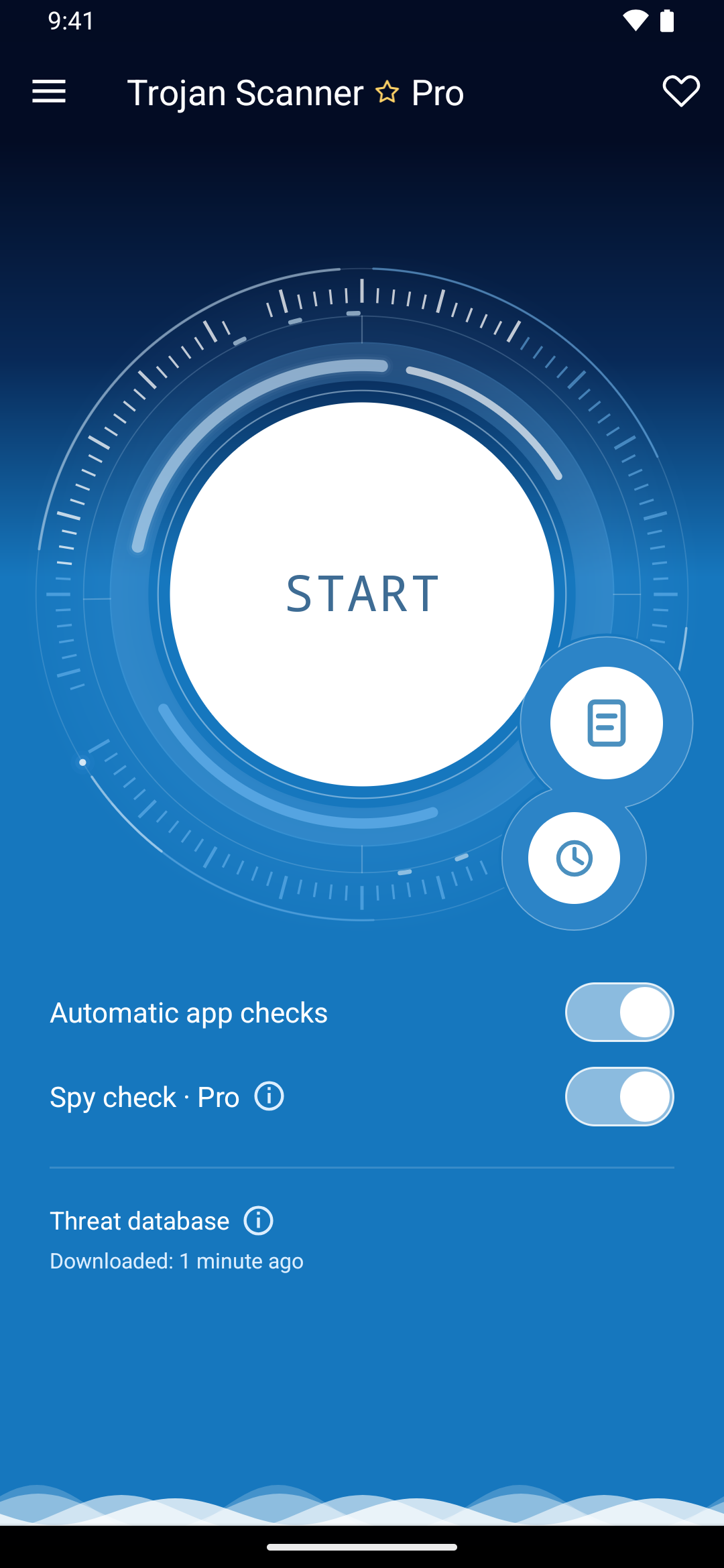
- Tap the large Start circle on the home screen.
- When file access is offered, allow it to include downloaded APKs and archives in accessible shared folders, or choose Check installed apps only. Private data inside other apps is not accessible.
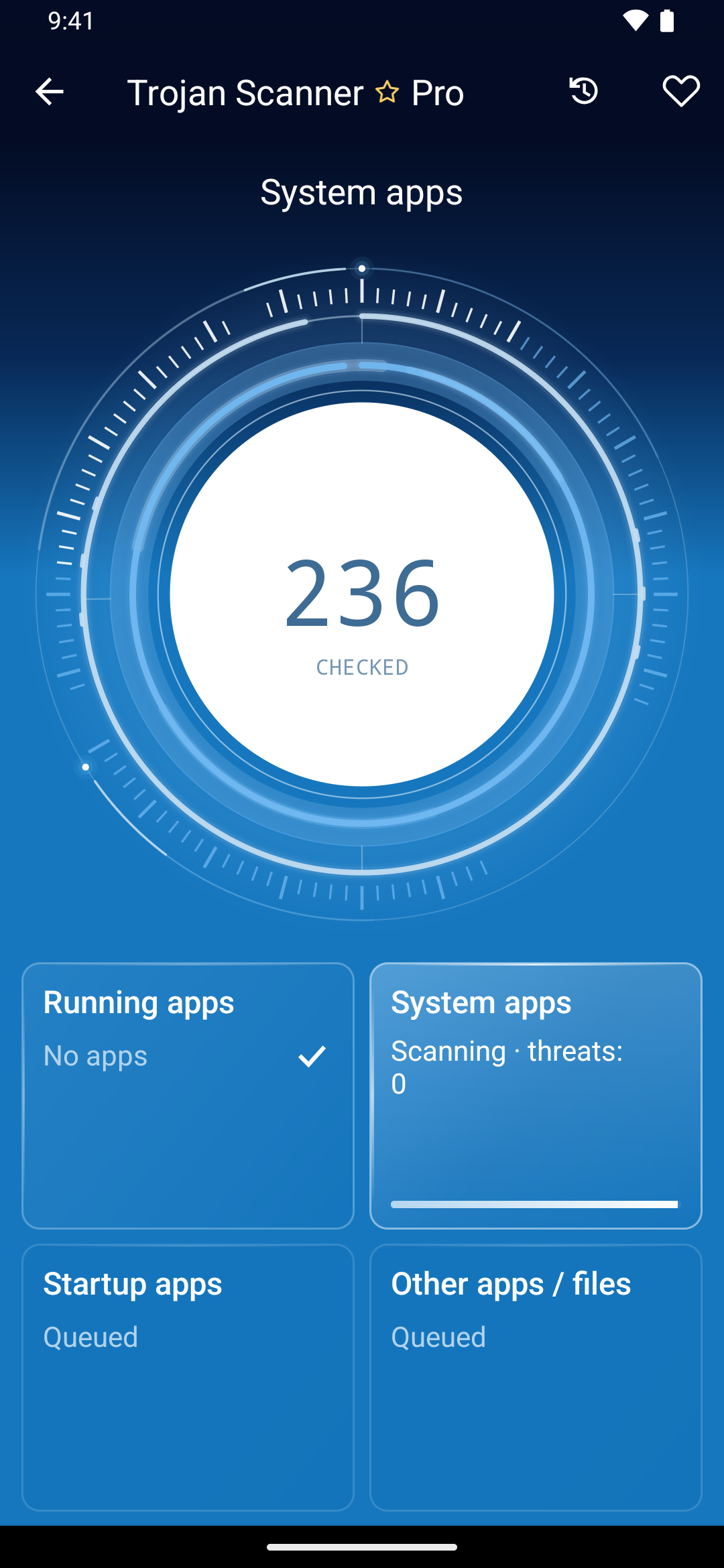
- Wait for the scan stages and final result. A zero detection count while scanning is still in progress is not a completed result.
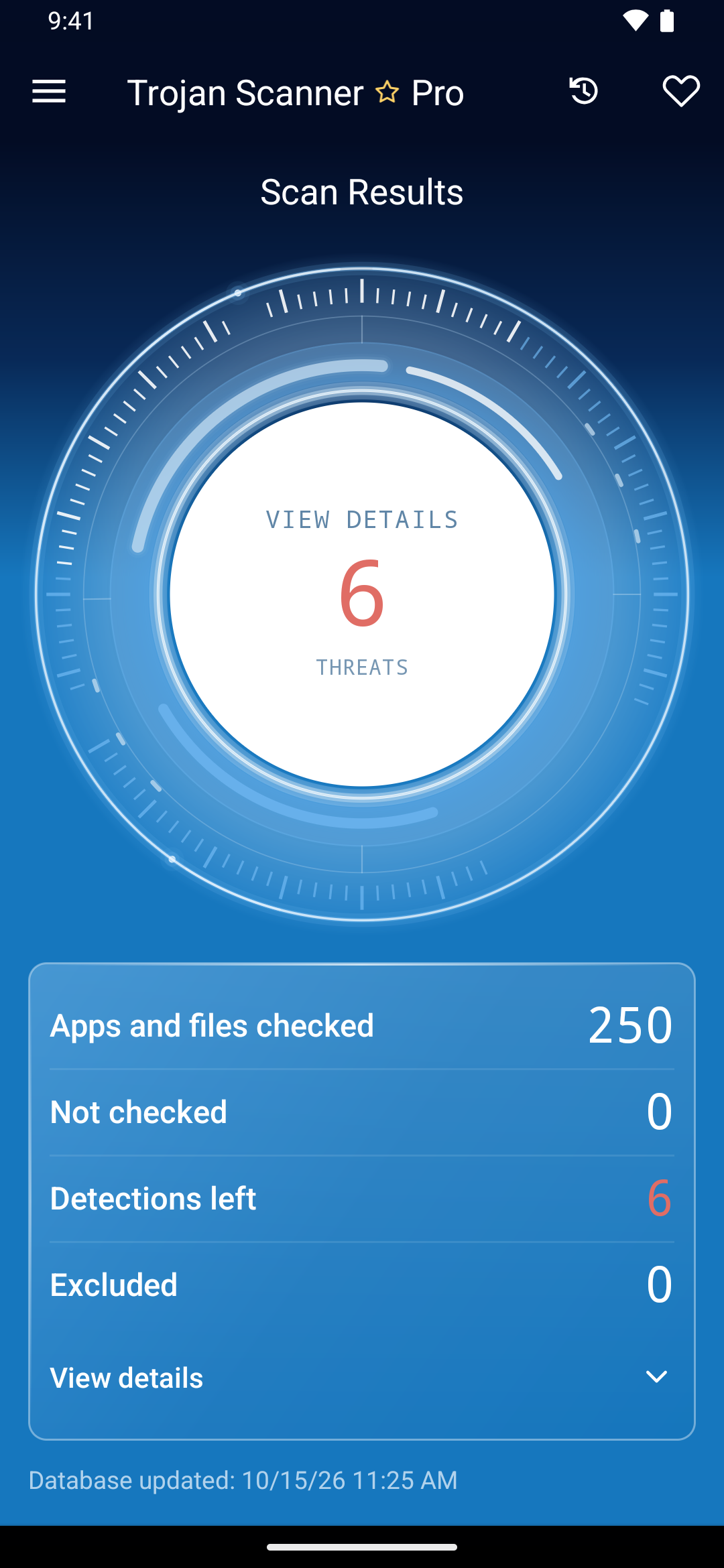
- Read the final status and open the finding details, if any. Check whether any apps, files or folders were not checked.
Choose what to do with a finding
Expand a detection to review the item and the reason it was flagged. A known-threat match is different from a potential permission or surveillance risk. Legitimate apps can need sensitive permissions, so review their purpose and source.
- Review each item before selecting it for removal. You can skip individual findings.
- Use the removal action. Android asks before uninstalling an ordinary installed app; a downloaded file has its own confirmation.
- Wait for the confirmed result. Canceling a prompt or adding an exclusion does not mean the item was removed.
- Run a new scan after cleanup to check the current state.
Find the result later
Open Protection history from the small home-screen shortcut or the menu. The first completed device check also creates the reference used by What changed. See results and protection history and removal, exclusions and quarantine.