
Trojan Scanner can handle checks between your manual scans. Free automatic checks examine newly installed and updated apps. Pro adds recurring installed-app scans and automatic threat-database updates, giving you a more regular checking routine with less to remember.
Keep free automatic app checks enabled
- Open the main screen and find Automatic app checks.
- Leave the switch on, or turn it on if you previously disabled it. This feature is enabled by default.
- Allow the initial threat database to download. When you install or update an app, Scanner can check it using the database already on the device.
- Open Menu → Protection history and choose Automatic to review the saved results.
These checks do not require Pro. Only findings trigger automatic-check notifications; a routine check with no findings does not send a completion alert. Existing apps can be checked with Start. Background checks report findings; they do not uninstall apps or delete files for you. Keep the threat database current for future checks.
Schedule installed-app checks with Pro
- Open Menu → Settings → Trojan Scanner Pro with Pro active.
- Under Scheduled checks, choose Every 24 hours or Every 7 days. Choose Off to stop the recurring schedule.
- Enable After database updates if you want installed apps checked again after a new database is downloaded. This can follow a manual or automatic database update.
- Read the status and next-check information on the Pro page. Scheduled checks cover installed apps; use a manual scan or Check a file for downloaded files.
Enable Surveillance check on the same page if you want Anti Spy analysis included.
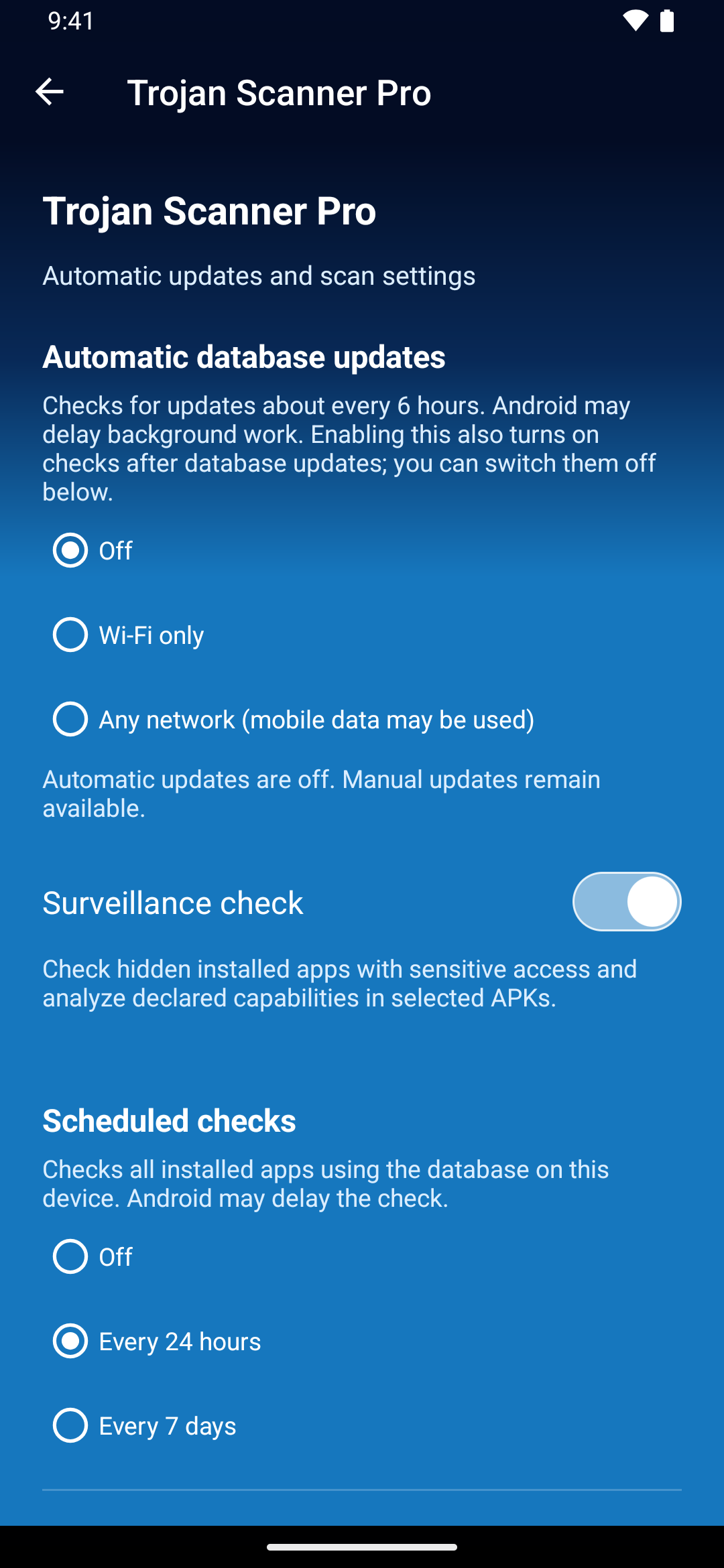
Turn on automatic database updates
Under Automatic database updates, choose Wi-Fi only or Any network (mobile data may be used). Pro checks for updates about every six hours. Selecting an allowed network for the first time also enables checks after database updates; you can switch that option off separately.
Choose Off to stop background database updates. Manual database updates remain available in Free and Pro.
Review results or troubleshoot a delay
Open Protection history and use Automatic, Scheduled or With findings to find the activity you need. Read incomplete and unchecked statuses before drawing a conclusion.
Android may delay background work to save battery. Check that the database is available, the selected network is connected and the relevant switch is enabled. Reopen Scanner after force-stopping it so automatic checks can resume. You can always start a manual scan while investigating a delay.
See how to read results and saved history and notification settings for more help.