
Open Menu → Settings to tailor Trojan Scanner to your routine. Free controls cover scanning, detection management and notifications. Active Pro adds advanced anti-spy and background automation options.
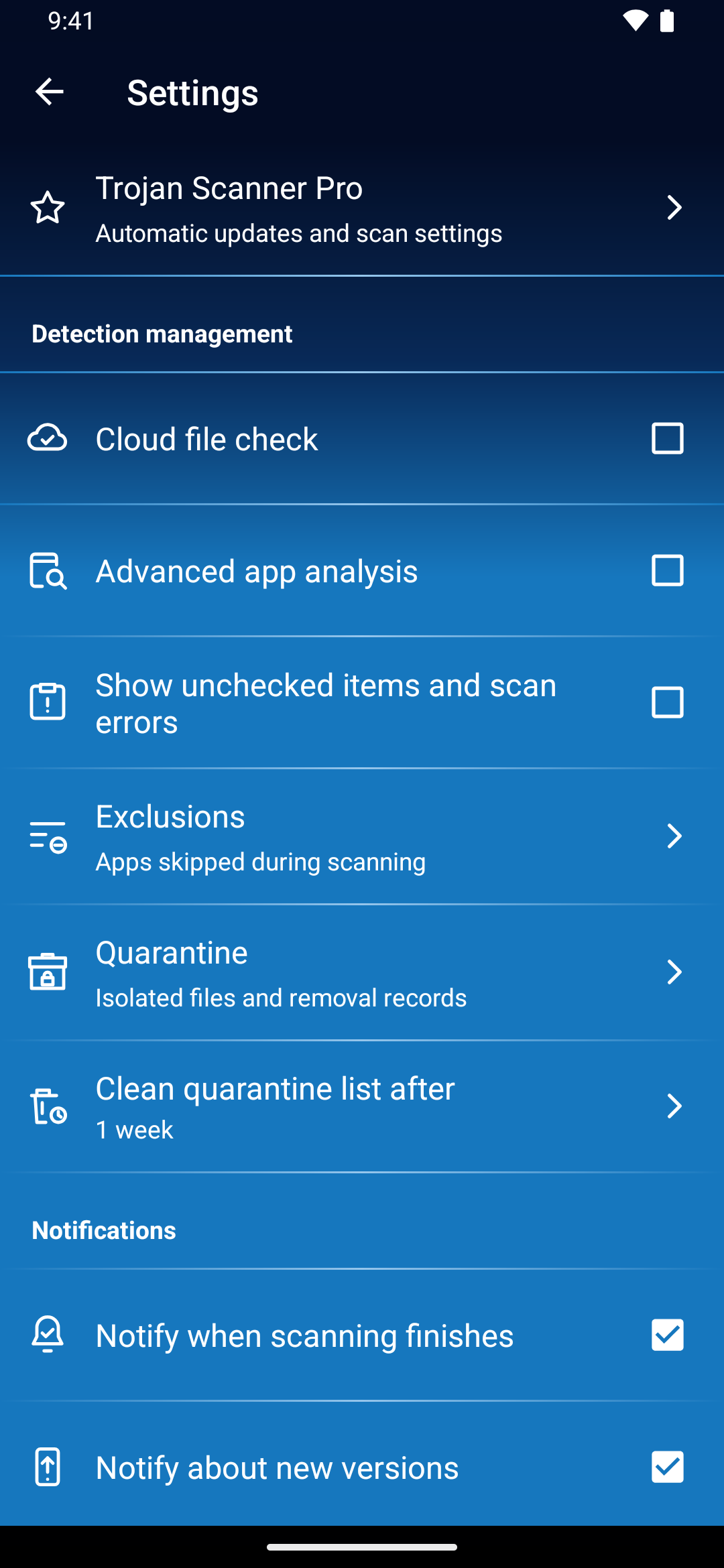
Detection management
- Cloud file check: optional free checks after Gridinsoft account sign-in and consent. File fingerprints and sizes are sent, not the files.
- Advanced app analysis: optional free cloud checks of domains embedded in apps after sign-in and consent.
- Show unchecked items and scan errors: show details that help explain incomplete coverage. Hiding these details does not make an incomplete scan complete.
- Exclusions: manage items skipped during device scans.
- Quarantine: review isolated files and completed app-removal records.
See account and cloud checks or detection management.
Choose your notifications
- Notify when scanning finishes: allow the result alert when a manual scan finishes while the app is in the background or the screen is locked.
- Notify about new versions: control automatic update reminders shown inside Trojan Scanner.
- Sound and notification display: open Android controls for sound, vibration, banners and lock-screen display.
Android permission and channel settings also affect notifications. The app’s general sound preference is separate from Android notification sounds. See notification help.
Threat database and saved reports
Update threats list and Download threats list control update checks and the allowed download network. A network preference is not the same as enabling Pro automatic database downloads. Manual updating remains free.
Choose how long to retain manual scan reports and quarantine records. Shorter retention can reduce stored history; it does not perform a new scan. See database and app updates.
Configure Pro
Open Trojan Scanner Pro. With active access, you can enable Surveillance check, choose a scan schedule and set automatic database updates to Wi-Fi only or any network. These are choices you configure; buying Pro does not require you to enable every option.
See Anti Spy and automatic checks and schedules.
Language, account and data
Use the language preference for the app’s interface. Open your Gridinsoft account from the menu to sign in or disconnect a device. Delete account or data opens the account-deletion instructions; signing out is a separate action. See how account controls work.