
Gridinsoft Anti-Malware combines on-demand scanning with three real-time protection layers. Each module covers a different entry point: web traffic, programs that start, and removable storage.
This overview follows the current Gridinsoft Anti-Malware interface. Two names used in older help have changed: On-Run Protection is now Suspicious Activity Shield, and USB Protection is now USB Device Control.
Open the Protection page
- Open Gridinsoft Anti-Malware.
- Select Protection in the app navigation.
- Review each module's status and enable the layers appropriate for the computer.
- Open the protection history to review recent blocks and decisions.
Internet Security
Internet Security, also referred to as Web Protection in some messages, filters risky web traffic before a dangerous page or resource loads. It can block malicious, phishing, scam, or compromised sites and record the decision in protection history.
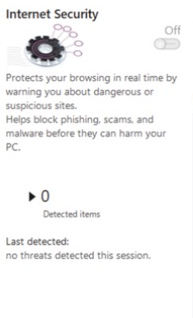
- Keep it enabled during normal browsing.
- Review the full domain before overriding a block.
- Add a website to the ignore list only after verifying that the detection is incorrect.
Suspicious Activity Shield
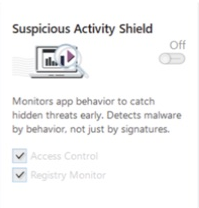
Suspicious Activity Shield, formerly On-Run Protection, monitors app behavior for hidden threats instead of relying only on known signatures. Its card includes Access Control and Registry Monitor indicators. See the complete On-Run Protection guide for alert handling and safe decisions.
USB Device Control
USB Device Control, formerly USB Protection, helps protect the computer from risky USB and external devices. It can block unauthorized use and lets you manage device access.
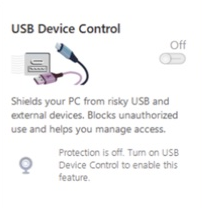
- Keep the module enabled before connecting unknown removable media.
- Grant device access only when you recognize and trust the device.
- Run a custom scan if the drive came from an untrusted or infected computer.
Understand protection status
An active status means the module is loaded and monitoring. A warning or unavailable status can indicate an expired license, incomplete update, disabled service, conflicting security software, or missing administrator permission. Update the app and restart Windows before changing exclusions.
Respond to alerts safely
- Use quarantine when you do not recognize a file.
- Do not allow a site or program merely because it interrupts your work.
- Review the protection log for the module, object, time, and action.
- Submit a false-positive report before adding a permanent exception.
Recommended configuration
For most personal computers, keep all three protection layers active, automatic updates enabled, and the ignore list minimal. Real-time protection is strongest when used with current threat databases and periodic scans.
If a module remains unavailable, contact Support with the exact status message and relevant application or protection logs.