
Product page: https://gridinsoft.com/antimalware
Ignore List: Managing Ignore List
Scan Results explainer: What you're seeing and what to do next
Contact Support: Start a support request
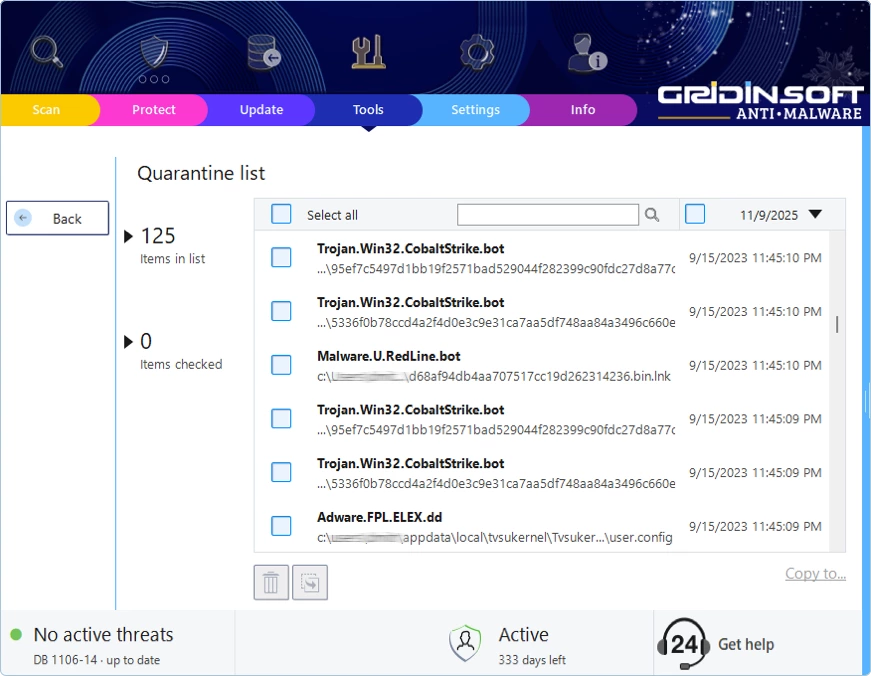
Quarantine basics
Safe isolation – items cannot execute or spread while quarantined.
Reversible – if something was flagged by mistake, you can restore it.
In your control – you choose what happens next.

How something lands in Quarantine
Clean Now – one click
When Advanced mode is off, the Results screen shows Clean Now. Click it to move all detections to quarantine with safe defaults.
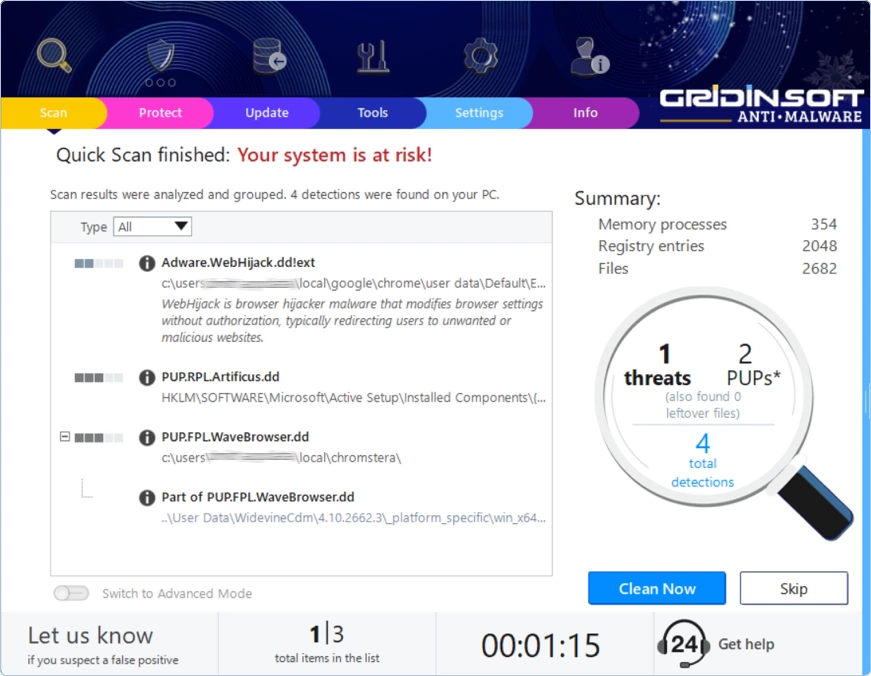
What happens:
Files are removed from their original locations.
Copies are stored securely in Quarantine.
You can restore or delete them later if needed.
It lets you undo a mistake and keeps your PC protected while you check.
Advanced mode – you choose actions
Toggle Advanced mode at the bottom of the Results screen to pick an action for each line.
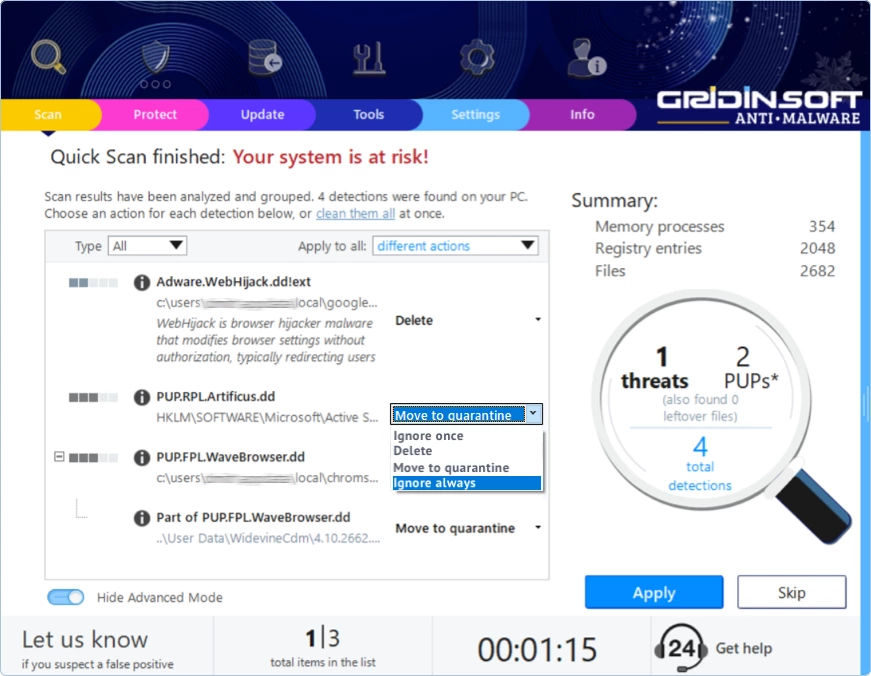
Available actions
Move to quarantine – recommended in most cases.
Delete – permanent removal. Use only when you are sure.
Ignore once – skip this time only.
Ignore always – add to your Ignore List to stop future flags.
Open the Quarantine list
Pick whatever’s quickest for you—there are three easy ways.Tools tab route
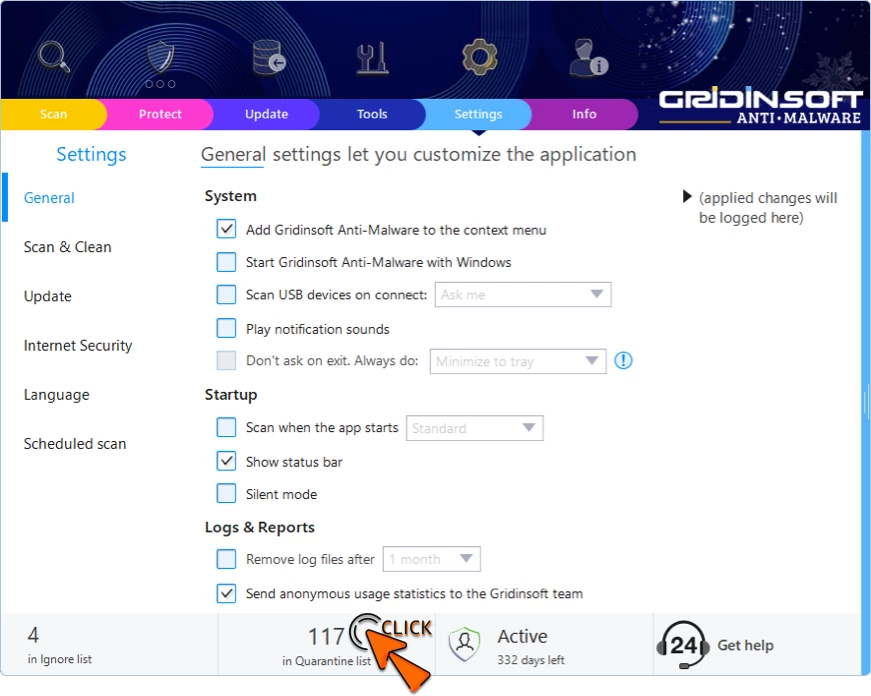
Option 1 – from the Settings tab
-
Go to Settings.
Look at the Statusbar area for N items in Quarantine List.
- Click the link to open the manager.
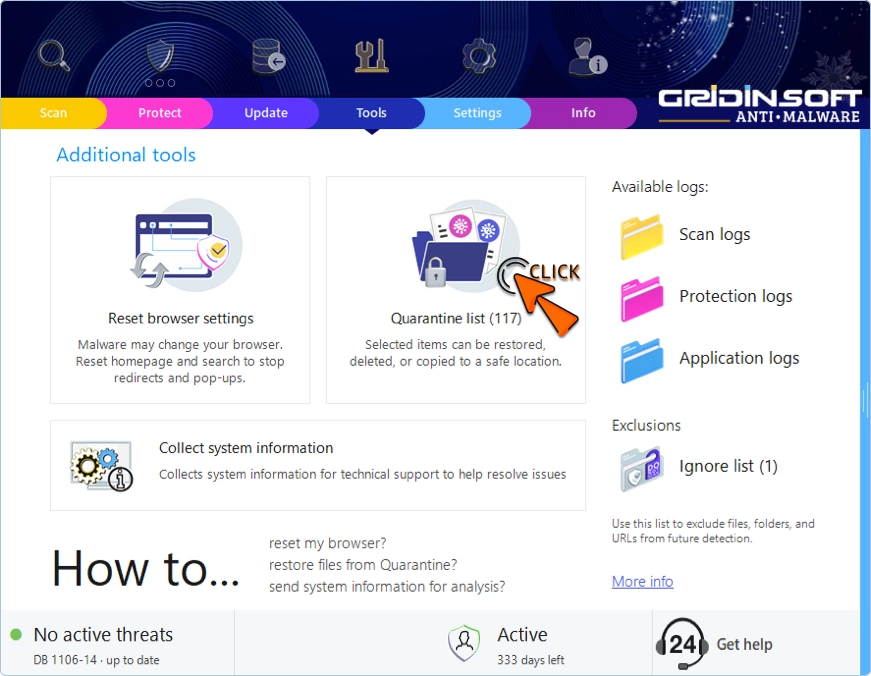
Option 2 – from the Tools tab
-
Open Tools.
-
Find Quarantine list.
-
Click it to view all isolated items.
Option 3 – from the Scan tab (start screen)-
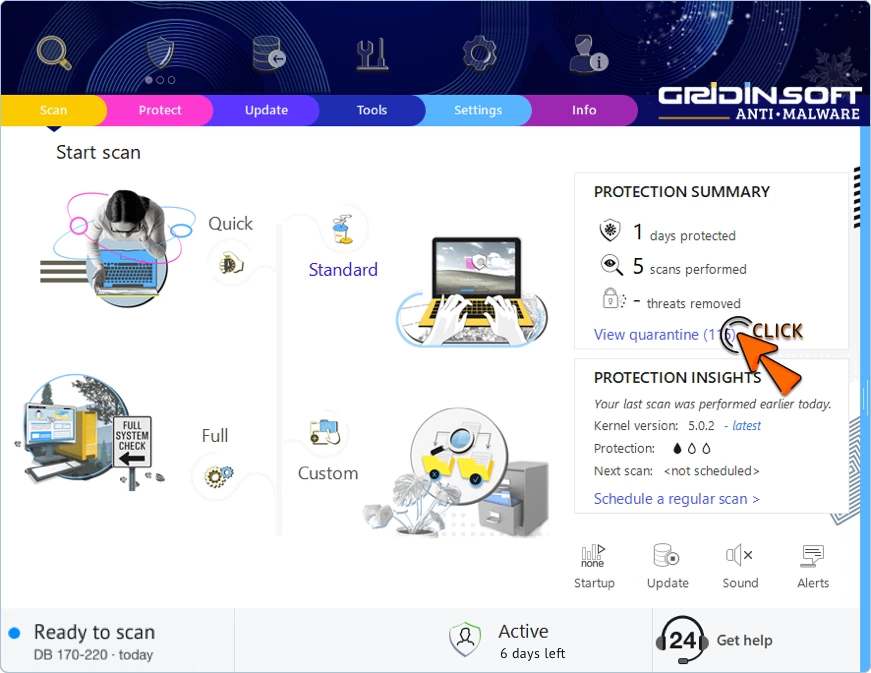
On the Scan start page, look at the right-side Protection summary card and click View quarantine (N).
N shows how many items are currently in Quarantine.
What you can do with quarantined items
Select first
-
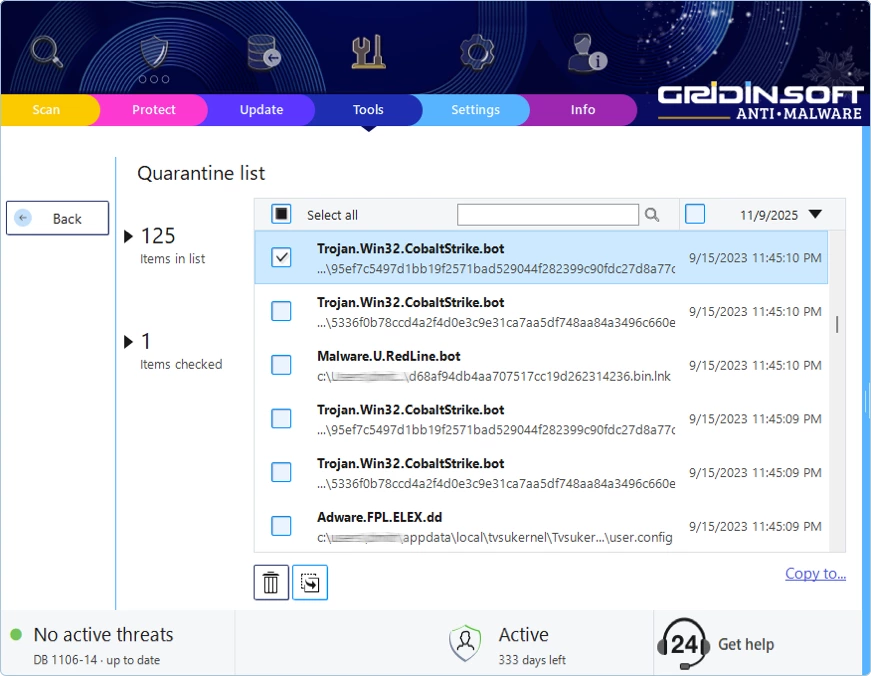
Each row has a checkbox.
-
The counters on the left show Items in list and Items checked.
-
The Restore and Remove buttons at the bottom stay disabled until you check one or more items.
Restore (after selecting items)
Puts the file back to its original location.
Use only if you’re confident it’s safe. After restoring, consider adding it to the Ignore List so it won’t be flagged again.
Remove (after selecting items)
Deletes the file from Quarantine and your PC.
Choose this when you’re sure it’s malicious or no longer needed.
4) Copy to… (for advanced users)
On the right side, click Copy to… to save a copy of the quarantined file to a folder you choose (for example, to analyze it yourself).
-
The original stays in Quarantine for safety.
-
Handle the copied file at your own risk—do not run it unless you know what you’re doing.
Handling false positives
Sometimes good files get flagged. If you believe that happened:
-
Restore the file from Quarantine at your own risk.
-
Add it to the Ignore List so it will not be flagged again.
-
Report it to Support with a short note so we can improve detection.
Best practices for Quarantine management
-
Review monthly – clear out old items you no longer need.
-
Be cautious with restore – return only files you are confident are safe.
-
Prefer quarantine over delete – safe and reversible beats permanent.
-
Document special cases – if you manage a family or school PC, note why something was restored.
-
Report suspicious flags – it helps everyone.
Quick FAQ
Does quarantine stop the file from running?
Yes. Quarantined items cannot execute.
Can I undo a quarantine?
Yes. Open the Quarantine list and click Restore.
What if I restore the wrong thing?
Re-scan and quarantine it again, or remove it if you are sure.
Is delete better than quarantine?
Only when you are 100% sure. Otherwise quarantine first.