
Prefer a calmer look? You can change Gridinsoft Anti-Malware’s interface to the Lite skin in a few clicks. This only changes how the app looks – your protection and settings stay the same.
Quick steps
-
Open Gridinsoft Anti-Malware.
-
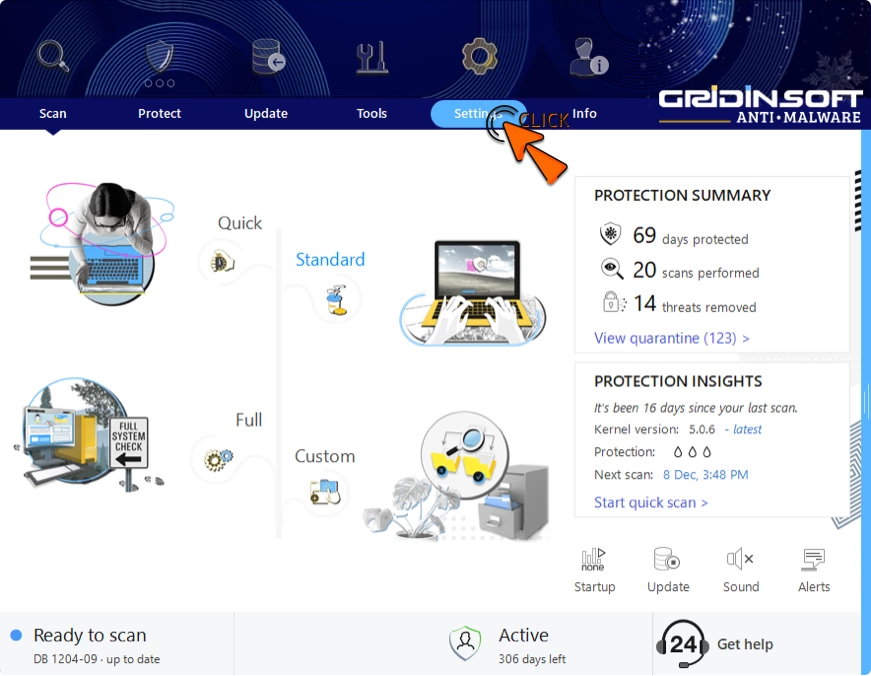
Click the Settings tab in the top menu.
-
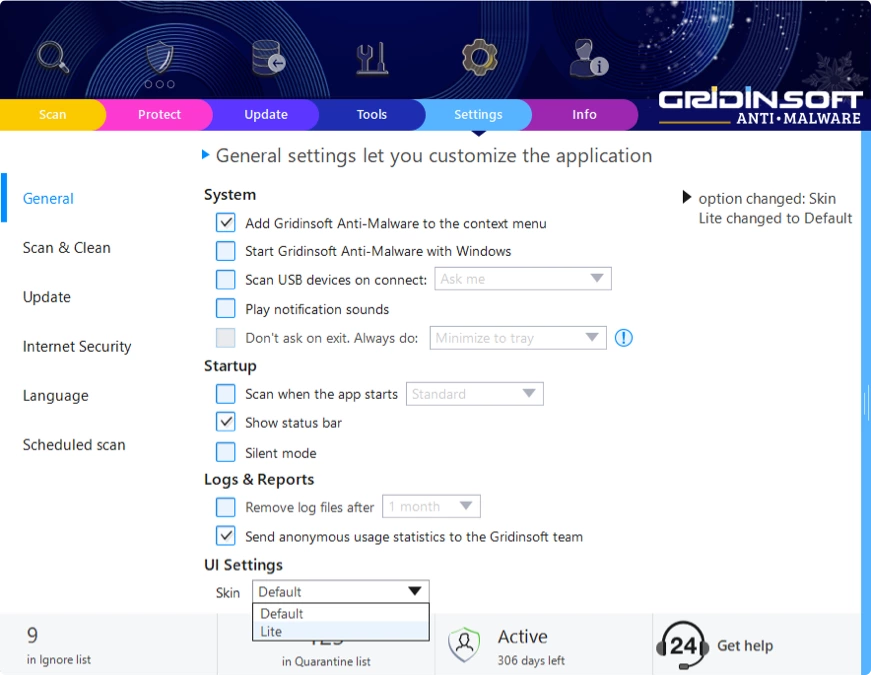
In the left sidebar, choose General.
-
Open the Skin dropdown at the bottom and pick Lite (or Default to switch back).
-
The new skin applies instantly.
Step-by-step
1) Go to Settings
From any screen, select the Settings tab in the top menu bar.
2) Open General and find UI Settings
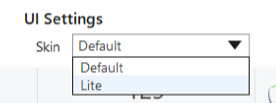
In the General section, scroll to UI Settings.
You’ll see a Skin dropdown.
3) Choose your look
-
Select Lite for a softer, low-glare look.
-
Select Default for the original vivid style.
Changes apply right away—no restart needed.
4) Done!
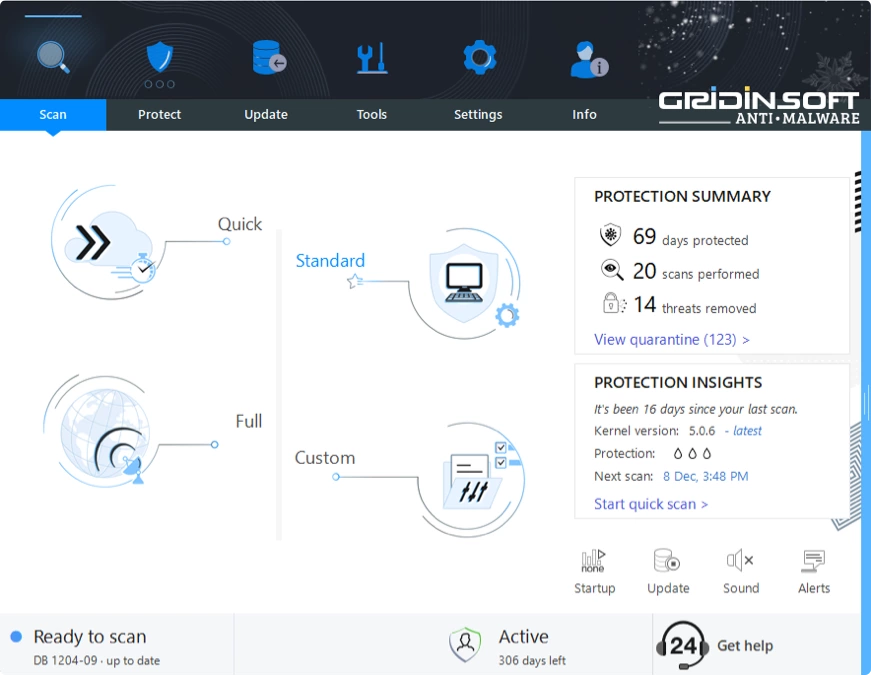
Return to the Scan tab to see the updated interface.
Tips & notes
-
No impact on protection – skin is cosmetic only.
-
Try it out – you can switch back anytime.
-
Brightness control – the Lite skin is designed to reduce visual intensity on bright screens.
Troubleshooting
I don’t see the Skin option.
Open the Update tab and install the latest version of Gridinsoft Anti-Malware, then check Settings → General → UI Settings again.
The interface didn’t change after I selected Lite.
Switch to Default, then back to Lite. If it still looks the same, restart the app once.
Will switching skins reset my settings?
No. It only changes colors and visuals.