
On-Run Protection is the name used in older Gridinsoft documentation. In the current interface, the corresponding real-time module is named Suspicious Activity Shield. It monitors app behavior to identify hidden threats, including activity that may not yet match a known signature.
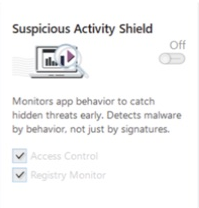
What Suspicious Activity Shield monitors
- Application behavior that resembles malware activity.
- Attempts by programs to make suspicious system changes.
- Access-control and registry activity covered by the module's monitors.
- Behavioral signals that complement the current Threat List.
The module complements scheduled and on-demand scans. It does not replace regular scans or Threat List updates.
Turn the protection on or off
- Open Gridinsoft Anti-Malware.
- Select Protection in the app navigation.
- Find Suspicious Activity Shield and use its switch to turn it on.
- Confirm that the protection status is active. If Windows asks for administrator approval, allow the change only when the app is the genuine Gridinsoft installation.
Keep this layer enabled unless Gridinsoft Support asks you to disable it temporarily for troubleshooting. If it will not stay enabled, update the app, restart Windows, and check whether another security product is blocking the protection service.
What happens when a threat is detected
When the module detects suspicious behavior, Gridinsoft Anti-Malware records the event and may show an in-app or Windows notification. Open the alert or Protection logs to review the affected object and available actions. The exact action labels depend on the detection.
- Quarantine or Block: the safest choice when you do not recognize the file. It prevents the item from running while preserving the option to review it.
- Remove: deletes or schedules removal of the detected item. Use it when you are confident the file is malicious.
- Allow once: permits only the current launch. Do not use it merely to dismiss an alert.
- Ignore or Always allow: creates a lasting exception. Use it only for a file you have independently verified as safe.
If you think the detection is a false positive
- Keep the file blocked or quarantined.
- Do not add a permanent exception yet.
- Record the detection name and file path.
- Submit a support request and attach the requested diagnostic information. Do not send confidential files unless Support specifically asks for them.
Review protection activity
Open Tools and select Protection logs, or use View log on the Protection page. Review the date, relevant protection log, app version, object, detection, and action. For a full guide to log types and sharing diagnostics, see Gridinsoft Anti-Malware Log Files.
Safe operating recommendations
- Keep threat databases and the application current.
- Prefer quarantine when you are uncertain.
- Review permanent exceptions periodically.
- Run a full scan after a confirmed real-time detection, especially if related files may already be present.