
Sometimes security apps yell at good stuff. Your game mod, school tool, or a trusted site can be flagged. The Ignore List is your safe list. Add trusted files or websites so Gridinsoft stops warning about them in future scans.
Product page: https://gridinsoft.com/antimalware
Quarantine explainer: Managing Quarantined Items
Scan Results explainer: What you're seeing and what to do next
Contact Support: Start a support request
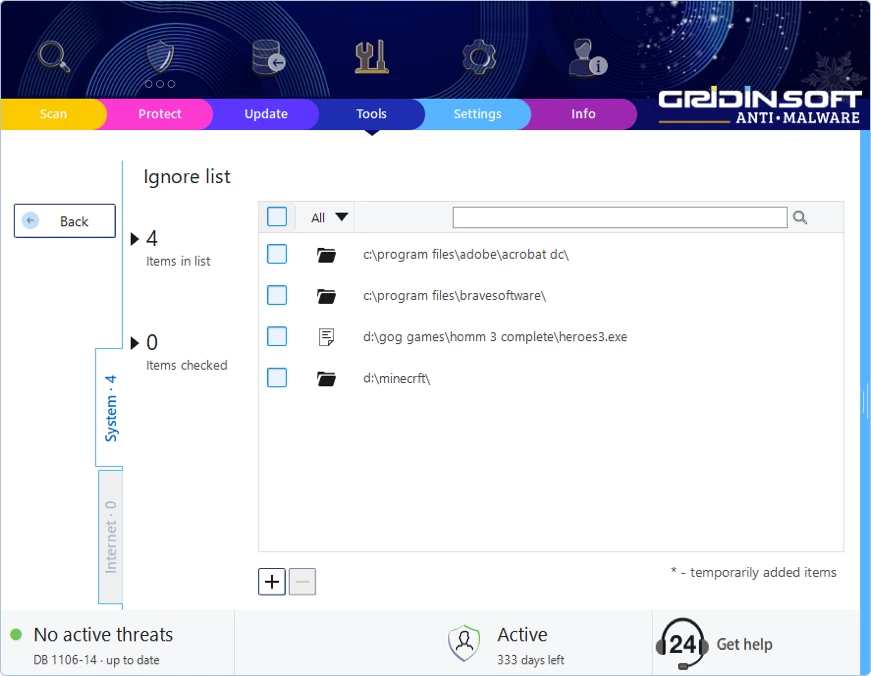
What the Ignore List does
Hides false alarms for things you trust.
Speeds up life by not asking you again and again.
Stays under your control so you can review or remove items anytime.

When to use it
Your homework app or game mod keeps getting flagged, yet you know it is clean.
A website you trust gets blocked while you need it for school or work.
You are testing your own software and do not want warnings each scan.
How to open the Ignore List
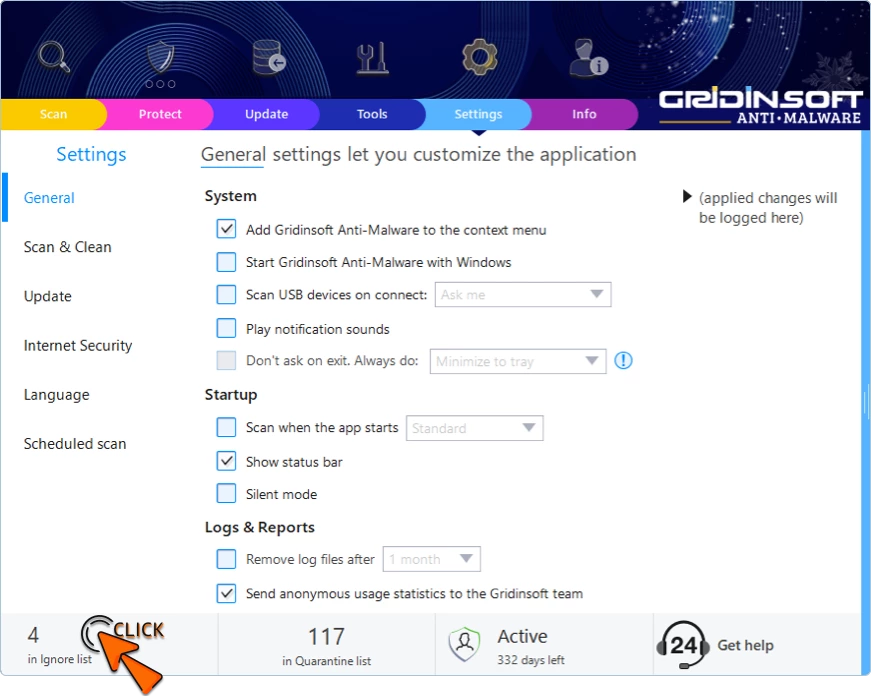
Option 1 – from the Settings tab
Open Settings.
Look at the lower left area for N items in Ignore List.
Click the link to open the manager.
Option 2 – from the Tools tab
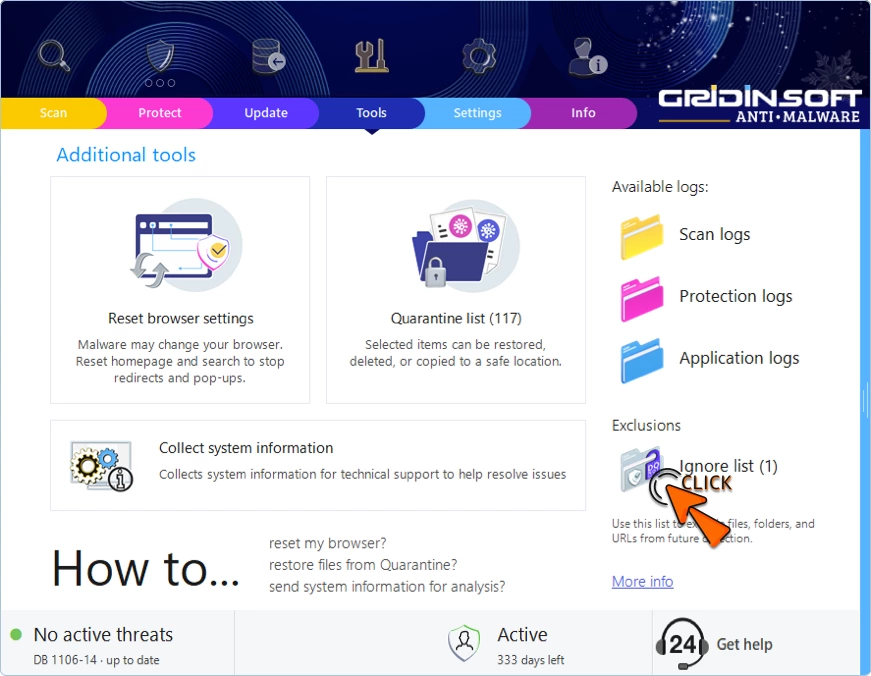
Open Tools.
Find Exclusions in the bottom right.
Click Ignore List.
Meet the two tabs
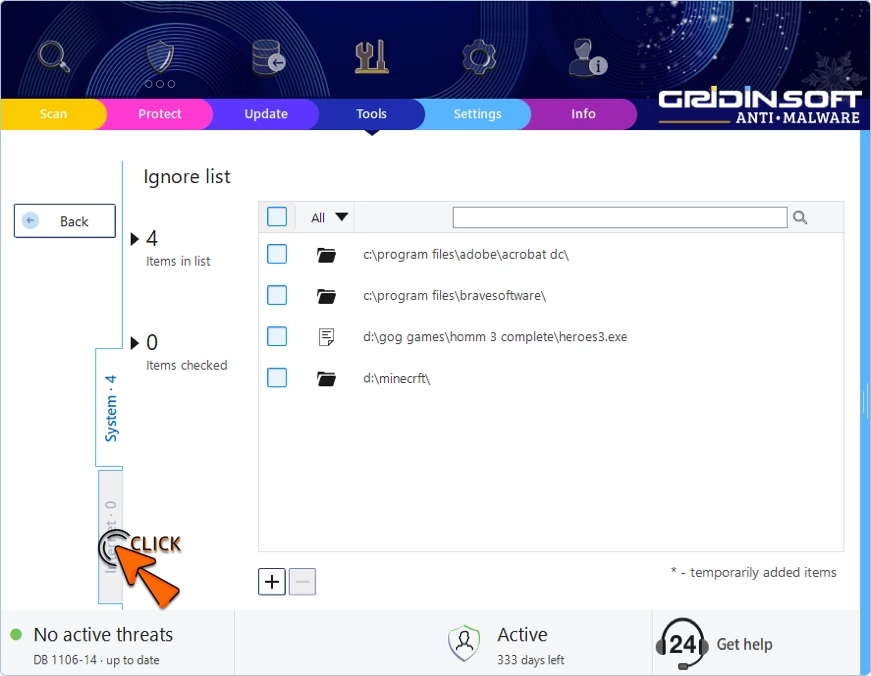
The Ignore List has two places to store your trusted stuff.
System tab – for files and folders
Anything here will not be flagged during scans.
Internet tab – for websites and URLs
These addresses will not be blocked by Internet Protection.
Add something to the Ignore List
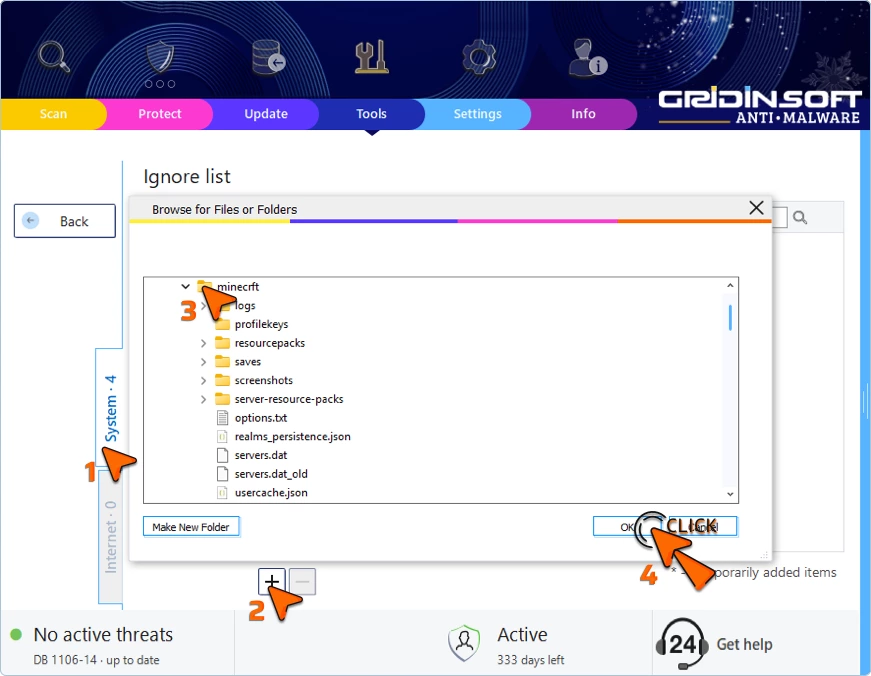
Add a file or folder
Go to System Tab.
Click Add (a "plus" icon at the bottom of list).
Pick the file or folder.
Confirm.
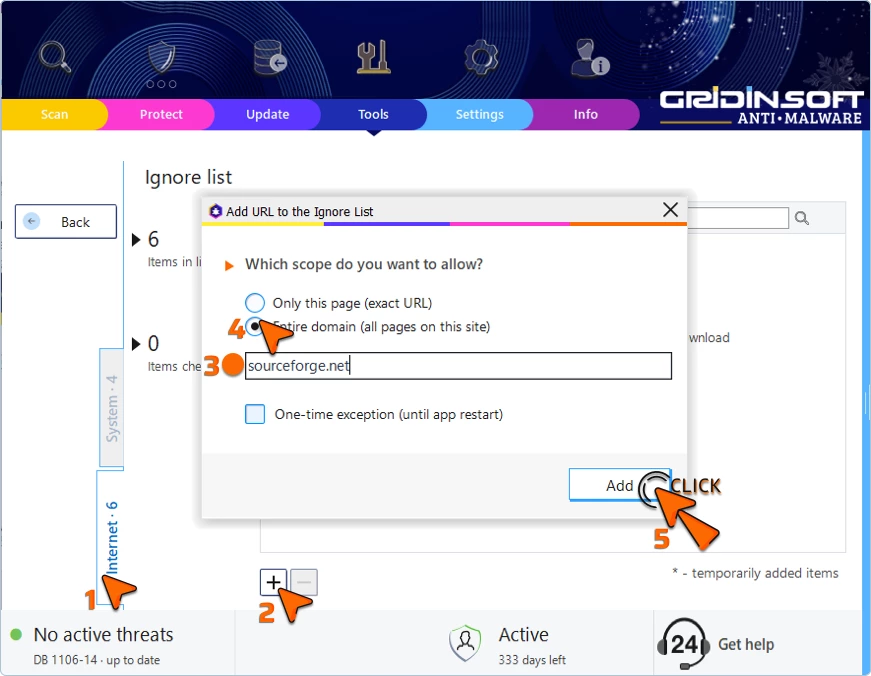
Add a website or URL
Go to Internet.
Click Add.
Enter the address.
Choose how broad you want the exception to be:
Single URL – only this page.
Entire domain – everything under that site.
Session-only – temporary until you close the app.
Confirm.
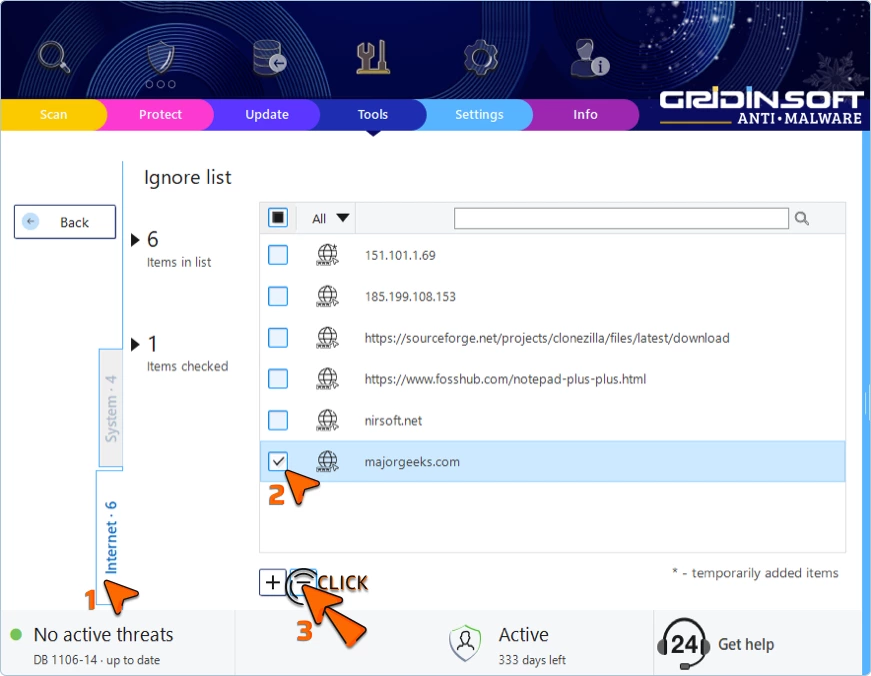
Remove something from the Ignore List
Open System or Internet.
Select the item you want to remove.
Click Clear.
The fastest way: add during scan results
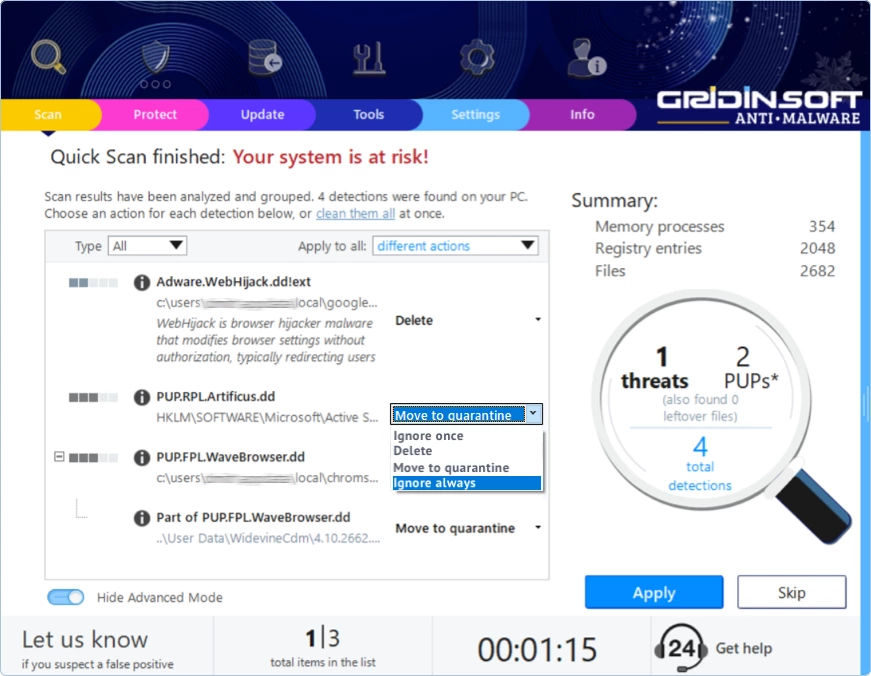
You can add items straight from the Results window when a scan finishes.
Advanced mode toggle sits under the list.
When ON you can choose a different action for each item.
Pick Ignore always for the item you trust.
When OFF Gridinsoft chooses safe defaults for you.
Add one item
In the list, open the small action menu on that line.
Choose Ignore always.
Add a bunch at once
Use Type filter if you want.
Click Apply to all and choose Ignore always.
Confirm.
Smart safety tips
Quarantine first, ignore later when you are not 100% sure.
Review monthly. Remove old entries you no longer need.
Be specific. Prefer one file or a single URL over a whole domain.
When in doubt, ask.
Mini-FAQ
Does Ignore delete the file?
No. It just tells Gridinsoft not to warn about it.
Will ignored items still run on my PC?
Yes. That is why you should only ignore things you trust.
Can I undo it?
Yes. Open the Ignore List and Clear the entry.
What is the difference between Ignore and Quarantine?
Quarantine isolates the file safely. Ignore leaves it alone and stops warnings.
Summary
Use Ignore List for trusted files or sites only.
Add from System tab for files, Internet tab for websites.
You can also add items right from Scan Results using Advanced mode.
Review the list regularly to keep protection strong.
If you need a second opinion on a file or link, we are here to help.