
Updates keep Gridinsoft Anti-Malware ready for new threats and deliver application fixes. The threat database is named the Threat List. The Update page shows its status separately from the current software version.
Two parts of the update process
- Threat List updates add and refine malware patterns, detection rules, and false-positive corrections.
- Application updates deliver security fixes, interface improvements, compatibility changes, and update-engine improvements.
Automatic updates
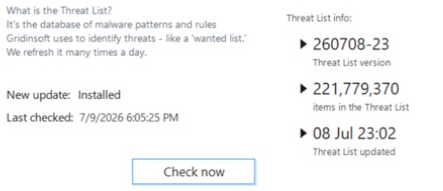
Keep automatic updates enabled. The app refreshes the Threat List many times a day when an internet connection is available. Normal Threat List updates install in the background; a program update may ask you to restart the app or Windows.
Check for updates manually
- Open Gridinsoft Anti-Malware.
- Open the Update page.
- Select Check now.
- Keep the app open while it downloads and verifies the update.
- Restart the app or Windows if prompted.
Do not download threat databases or program patches from third-party websites. The official installer and built-in updater are the supported sources.
Confirm the update succeeded
- New update should show Installed.
- Last checked and Threat List updated should show recent times.
- Current software version should show Latest version installed after a program update.
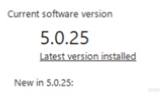
You can compare the installed version with the official Gridinsoft Anti-Malware release history. Version numbers can advance independently of the database update time.
What to do after an update
- Allow any requested restart to complete.
- Confirm that real-time protection modules are active.
- Run a Quick Scan if the update followed a period without current protection.
- For a major application update, review the release notes for changed behavior or interface details.
If an update fails
Check the internet connection, correct Windows date and time, restart the app, and try the manual check once more. Do not disable Windows security controls or install an unknown update package. Follow Threat database updates fail. What should I do? for detailed troubleshooting.
If the error continues, collect the application log around the failed attempt and submit a support request with the current app version and exact error message.