
Gridinsoft Anti-Malware logs record scans, real-time protection events, and application activity. They help you confirm what happened and give Support the context needed to diagnose a problem.
The three log types are available from Tools. A protection shortcut can also open the relevant history directly.
Types of logs
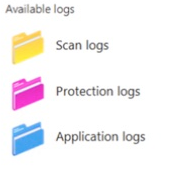
- Scan logs: scan start and completion times, scan mode, objects checked, detections, and cleanup results.
- Protection logs: events from Internet Security, Suspicious Activity Shield, and USB Device Control, including the affected object and action.
- Application logs: update, service, startup, and internal diagnostic events used to investigate crashes or unexpected behavior.
Open and review logs
- Open Gridinsoft Anti-Malware.
- Open Tools and find Available logs, or select View log on the Protection page.
- Select the log type relevant to the issue.
- Open an entry to review its date, app version, detection or event, object path, and action.
Filter the list
Use the controls above the list to narrow it by date, log type, and application version. Start with the time the problem occurred. For an update problem, collect application events from the failed attempt; for a blocked program, collect the matching protection event; for scan cleanup, collect the relevant scan log.

Send logs to Support
- Reproduce the problem once if it is safe to do so, and note the exact time.
- Select only the relevant log entries.
- Select Send logs. The button is available after applicable log entries are selected.
- Create a support ticket and include the exact error, time, Windows version, and the steps that caused it.

If Support requests broader diagnostics, return to Tools and select Collect system information.
Do not send passwords, full license keys, payment-card information, or unrelated personal files. Logs can contain Windows usernames, file paths, domains, and application names, so review exported data before attaching it outside the built-in support flow.
Clear or retain logs
Keep recent logs until an open support case is resolved. If you need to remove stored diagnostic data, follow How can I delete my data or logs?. Clearing a log cannot undo a quarantine or protection action.
What to include for common problems
- False positive: protection or scan event, detection name, file path, and the last four characters of the license key if requested.
- Update failure: application log around the attempt, current app version, and exact update error.
- Crash or blank dialog: application log, Windows version, and whether the standard or Lite skin is active.
- Removal incomplete: scan log and the cleanup result after restarting Windows.