Run a scan
- Open Security in 67 Cleaner.
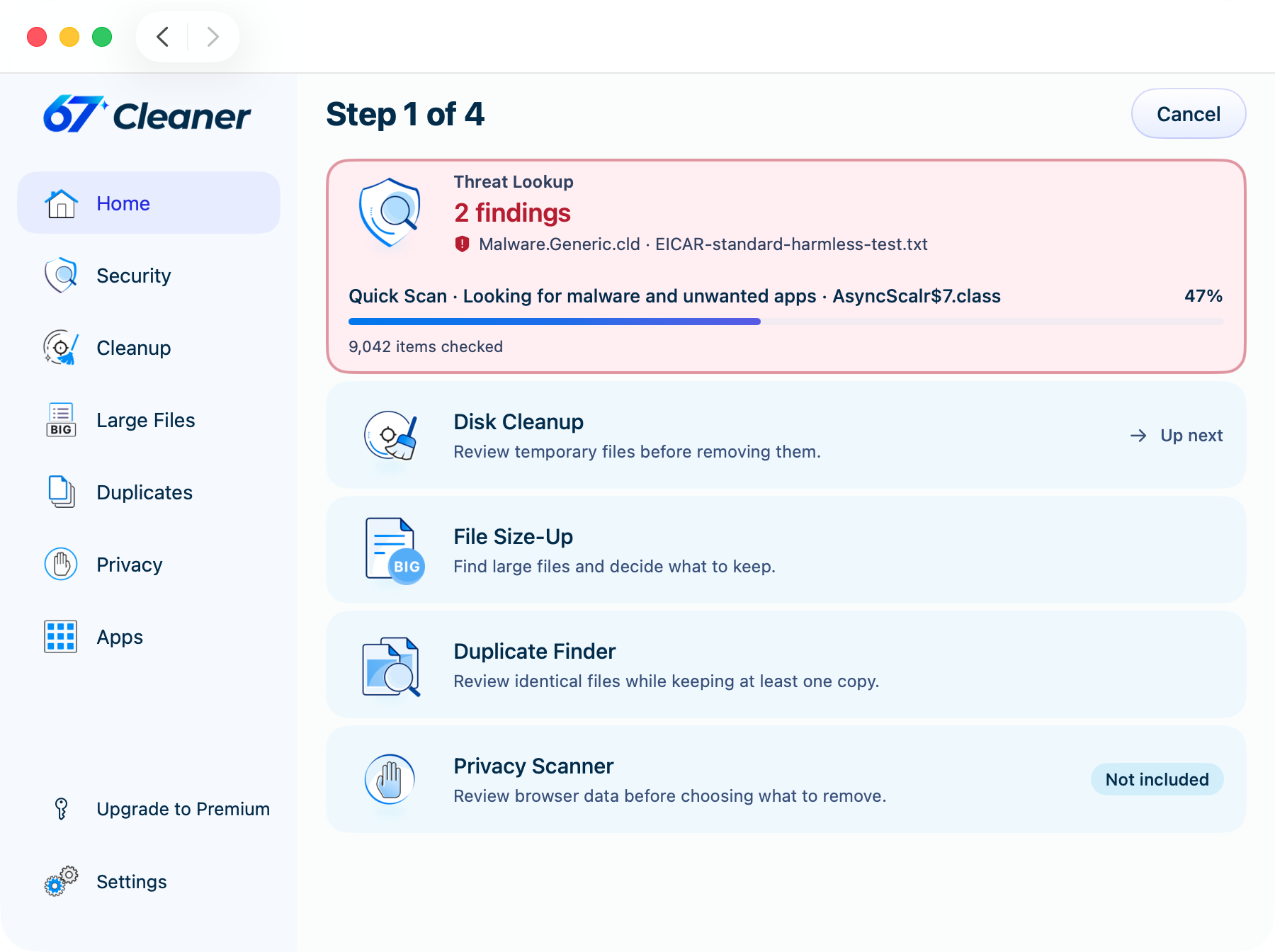
- Choose Quick Scan for a check of common locations. With paid Premium, choose Full Scan for broader coverage or Custom Scan to pick folders.
- Start the scan and let it finish. If some items could not be checked, review the reported coverage. If definitions are unavailable, check your connection and try again.
Decide what to do with a detection
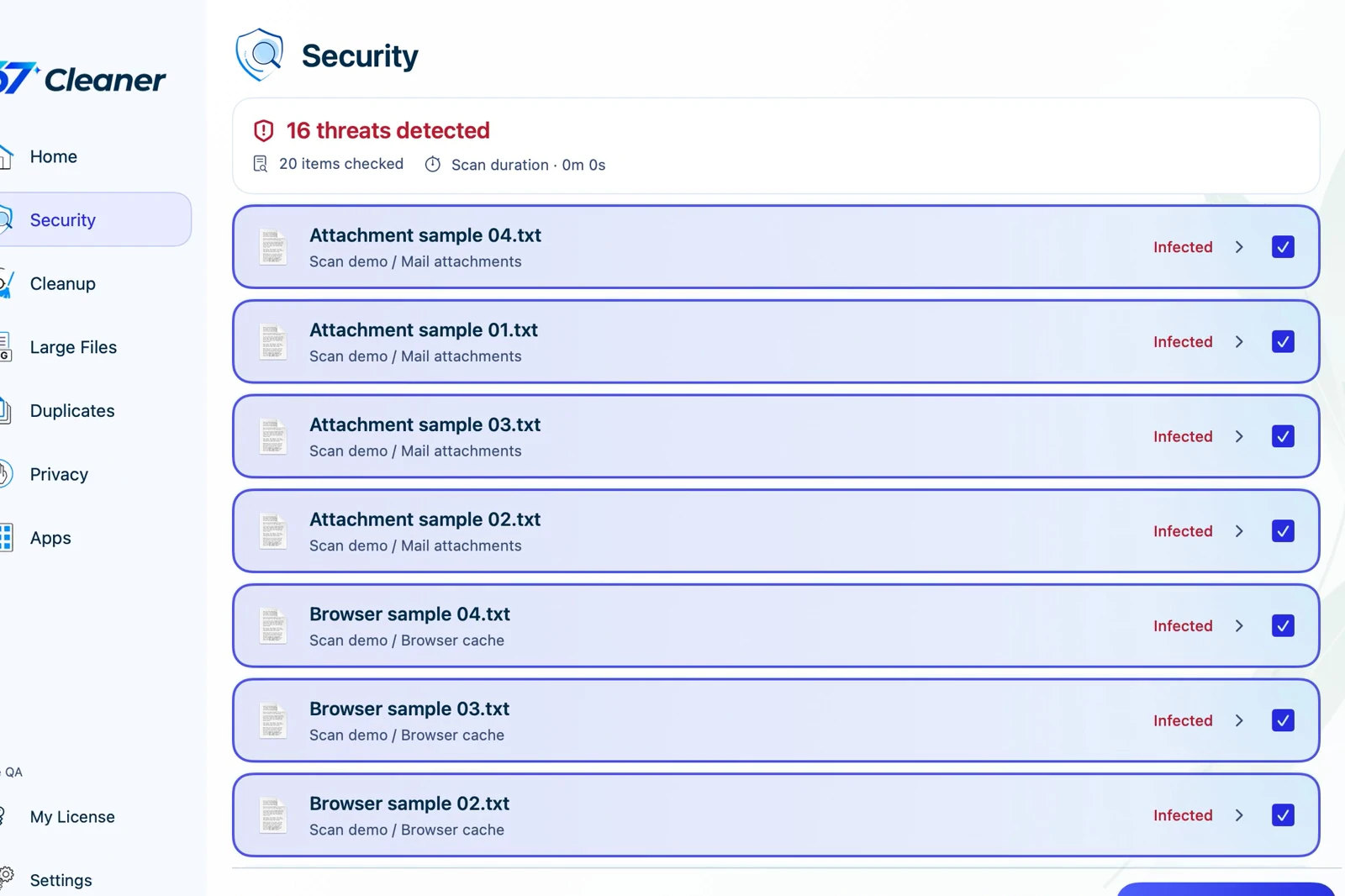
Open the detection details and check the name, file location and scan status. Running a scan leaves files in place. With an active trial or paid Premium, review the available actions for each item before confirming. Quarantine keeps an encrypted copy locally. Permanent removal can prevent recovery.
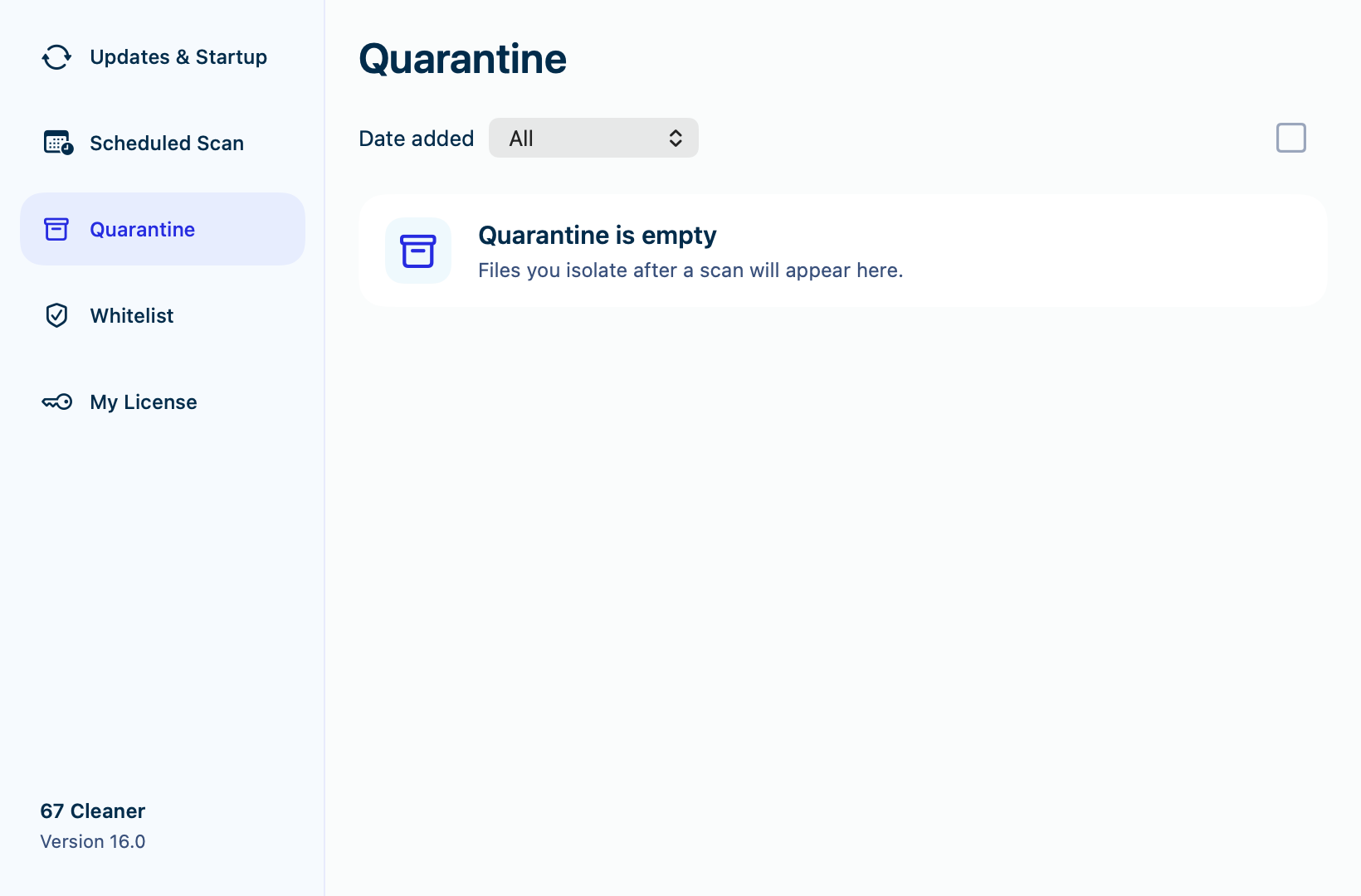
Open Settings → Quarantine to review isolated files. If you believe a file is safe, leave it in quarantine while Gridinsoft reviews the detection. Send the detection name, file path with personal details removed, and the circumstances of the detection through the support form.