
Check for updates
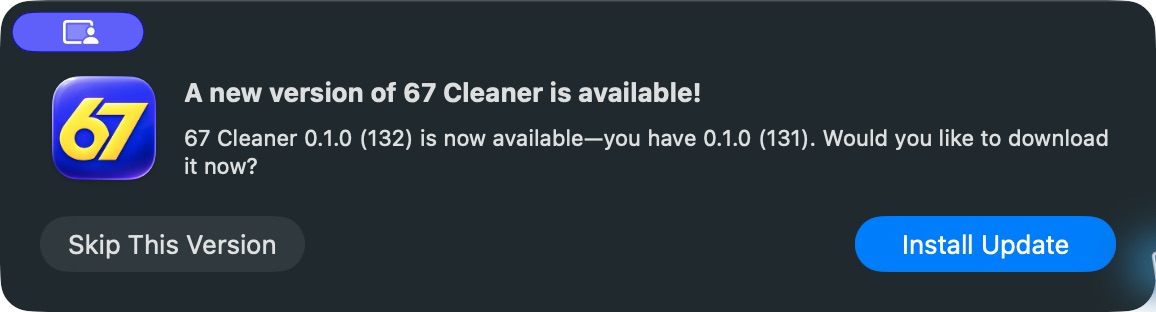
Choose 67 Cleaner → Check for App updates in the menu bar. Follow the prompts when a new version is available. Threat definitions update separately. Open Settings → Updates & Startup to check their status. If an update keeps failing, capture the exact message and app build from 67 Cleaner → About 67 Cleaner.
Uninstall 67 Cleaner
- Open the installed app from Applications and choose 67 Cleaner → Uninstall… in the menu bar.
- Review the list of what will move to Trash. The app keeps settings, quarantine and recovery data by default. Leave those defaults in place if you may need that data again.
- Confirm the plan and review its result. If macOS refuses to move the app, record the error and contact support. On a managed Mac, ask your administrator for help.
Before emptying the Trash, make sure you no longer need any of the moved items. For subscriptions or activation questions, see the license guide.