
The Windows HOSTS file can override normal DNS results. Malware sometimes changes it to block security sites or redirect legitimate domains. Resetting it can restore normal access, but it can also remove intentional entries used by a workplace, development environment, parental-control tool, or local network.
Before you reset the file
- If this is a managed work computer, ask the administrator whether the HOSTS file contains required entries.
- Close browsers and save your work.
- Run Gridinsoft Anti-Malware with administrator rights so it can modify the protected system file.
Reset the HOSTS file in Gridinsoft Anti-Malware
- Open Gridinsoft Anti-Malware and select Tools.
- Open Reset browser settings.
- Under System options, select Hosts file. If you only want to reset HOSTS, clear unrelated browser items before continuing.
- Start the reset and approve the Windows administrator prompt if it appears.
- Wait for the completion summary. Restart browsers and test the sites that were blocked or redirected.
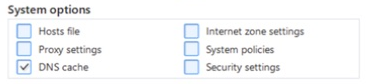
Skin and build differences can change the location of a control slightly. The reset requires an active license; if the app shows a license-expired message, renew or activate the license before retrying.
Verify the result
- Open
%WinDir%\System32\drivers\etc. - Open the
hostsfile in a text editor as an administrator. - Confirm that suspicious mappings are gone. Standard Windows installations normally rely on DNS for localhost resolution, so the sample localhost entries may be comments.
- Run a full malware scan. A modified HOSTS file can be a symptom of a broader infection.
If the app cannot reset HOSTS
Use Microsoft's current Windows 10/11 procedure: create a clean extensionless hosts file, rename the existing file to hosts.old, and place the clean file in %WinDir%\System32\drivers\etc. Follow the complete Microsoft Support instructions so the filename and permissions remain correct.
If redirects return after the reset
- Update Gridinsoft Anti-Malware and run a Full Scan.
- Check installed browser extensions and proxy settings.
- Do not repeatedly edit the file while malware is still active.
- Contact Support with the affected domains and scan results if the entries reappear.