
Gridinsoft Anti-Malware includes a selective Reset browser settings tool. It can restore browser items and Windows network or security settings that may have been changed by browser hijackers, unwanted extensions, or other malware.
The reset is selective: only the browsers and options you check are processed. Review every selection before starting.
When to use the tool
- Your homepage or default search engine changes without permission.
- The browser opens unwanted pages, redirects searches, or shows persistent pop-ups.
- An unknown add-on, browser policy, shortcut parameter, proxy, or HOSTS entry keeps returning.
- Gridinsoft Support asks you to restore specific browser or system settings during malware cleanup.
Before you start
- Save forms, documents, downloads, and other work open in a browser. Selected browsers will be closed during the reset.
- If you select Cookies, expect to be signed out of websites. Selecting History removes the relevant browsing history.
- Bookmarks and saved passwords are not listed as reset items. If they are important, enable browser sync or export a backup before changing the profile.
- On a managed work computer, ask the administrator before resetting browser or system policies, proxy settings, security settings, Internet zone settings, or the HOSTS file.
Open Reset browser settings
- Open Gridinsoft Anti-Malware.
- Select Tools.
- Open Reset browser settings.
Choose browsers and reset items
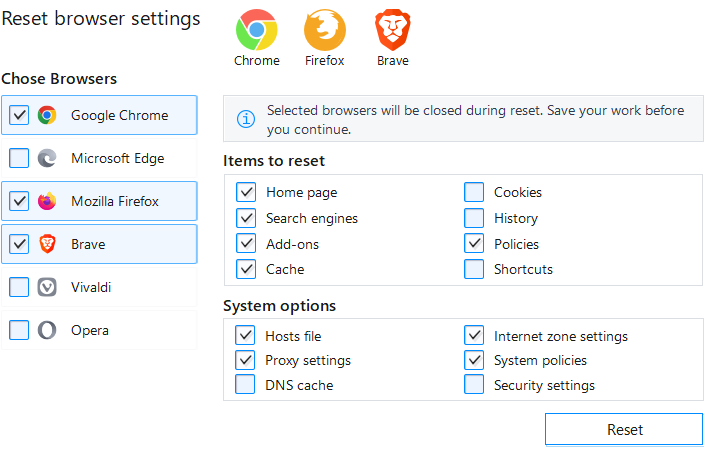
The tool lists supported browsers detected on the computer, including Google Chrome, Microsoft Edge, Mozilla Firefox, Brave, Vivaldi, and Opera. Check only the browsers you want to process.
Under Items to reset, select the browser data or configuration that should be restored:
- Home page: restores the homepage setting.
- Search engines: restores the browser's search-engine configuration.
- Add-ons: resets add-on or extension changes. Review trusted extensions after the reset.
- Cache: removes cached browser content.
- Cookies: removes cookies and can sign you out of websites.
- History: clears the selected browser's browsing history.
- Policies: restores browser policy changes. Do not use this on a managed device without approval.
- Shortcuts: removes unwanted changes to browser shortcuts and launch parameters.
Choose system options carefully
The System options section can restore Windows settings that affect browsers and network access:
- Hosts file
- Proxy settings
- DNS cache
- Internet zone settings
- System policies
- Security settings
These settings may contain legitimate workplace, development, parental-control, VPN, or network configuration. Leave an option unchecked when you are unsure why it is configured.
Run the reset
- Review the selected browsers, browser items, and system options.
- Select Reset.
- Allow the selected browsers to close.
- Do not close Gridinsoft Anti-Malware while the reset is in progress.
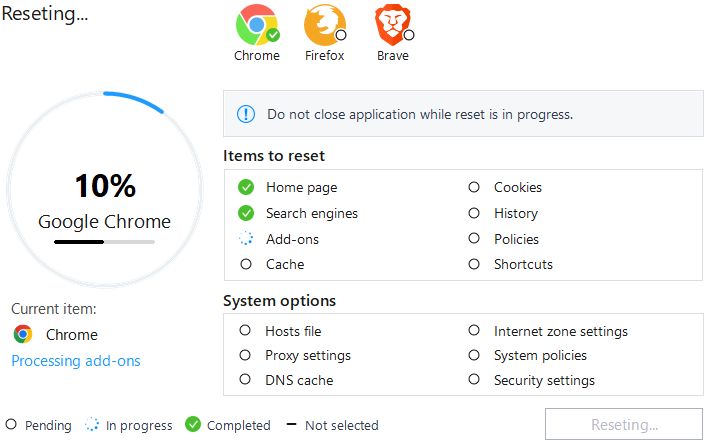
- Use the Status tab to follow the current browser, current item, percentage, and result of each option.
The legend distinguishes Pending, In progress, Completed, and Not selected. A dash means that the option was not selected; it is not an error.
Confirm completion
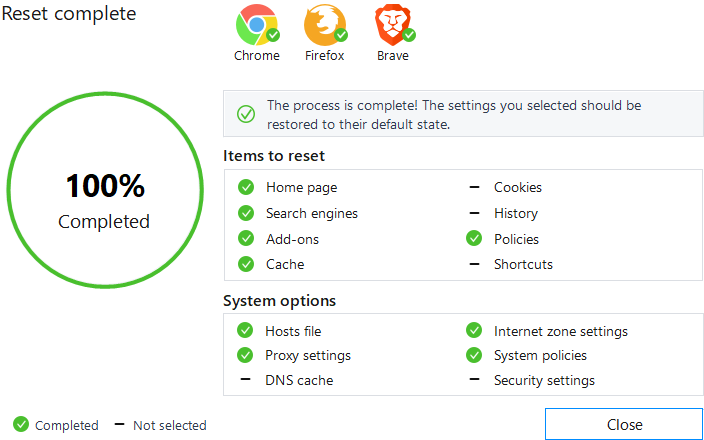
When the process reaches 100%, the page shows Reset complete. Verify that selected items have green completion marks and that intentionally skipped items show a dash. Select Close only after reviewing the result.
Review the reset log
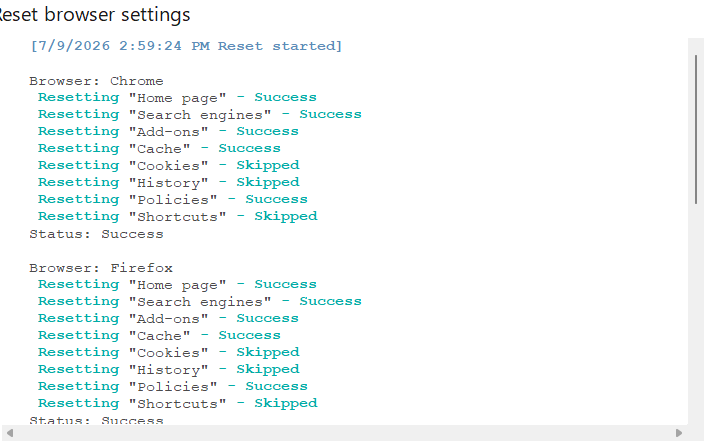
Select the Log tab to see what happened for each browser and option. The log records results such as Success and Skipped. Note the reset time and any failed item before contacting Support.
After the reset
- Reopen each processed browser.
- Verify the homepage, search engine, extensions, proxy behavior, and the sites that were redirected or blocked.
- Sign in again where cookies were cleared.
- Re-enable or reinstall only extensions you recognize and trust.
- Update Gridinsoft Anti-Malware and run a Full Scan if the unwanted changes were caused by malware.
If the reset does not finish or the problem returns
- Check the Log tab for the affected browser or setting.
- Restart Windows, open Gridinsoft Anti-Malware as administrator, and retry only the failed option.
- Confirm that the app license is active and the browser is not controlled by an administrator.
- Do not repeatedly reset legitimate organizational policies or proxy settings.
- Submit a support request with the app version, reset time, failed item, and a screenshot of the log. Do not include passwords, full license keys, or private browsing data.
For a concise explanation of which personal data is and is not targeted, see What exactly does Reset Browser Settings change?