
Activation connects your Gridinsoft Anti-Malware installation to a valid license. You need the license key from the purchase email or Member Area and a working internet connection.
Before activation
- Install the latest official Gridinsoft Anti-Malware build.
- Confirm that Windows date, time, and time zone are correct.
- Copy the license key from the purchase email or find it in the Member Area.
- Close spaces before or after the key when copying it.
Activate the license
- Open Gridinsoft Anti-Malware.
- Open Info.
- Select Enter a new license key.
- In the Already have a license key? dialog, stay online and enter the key you received.
- Paste the license key exactly as issued and submit it for verification.
- Read and accept the license terms if the app displays them.
- Wait for the confirmation, then reopen the license page to verify the status and expiration date.
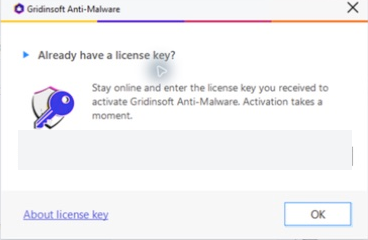
The key field is intentionally hidden in this image. Never publish a screenshot containing your complete license key.
After successful activation
- Check for application and threat database updates.
- Confirm that the intended real-time protection modules are active.
- Run a Quick Scan to establish a current security baseline.
- Keep the purchase email and key in a secure place. Do not publish or share the full key.
If the key is rejected
- Verify similar characters and remove extra spaces.
- Make sure the key belongs to Gridinsoft Anti-Malware rather than another Gridinsoft product.
- Turn off VPN or proxy temporarily if it prevents connection to the activation service; do not disable your firewall or antivirus.
- Run the genuine app as administrator and retry once.
If the activation limit is reached
The license may already be associated with the allowed number of devices or with a previous Windows installation. Follow The activation limit is reached. Do not buy a second license before Support checks the existing activation.
If an activated app asks you to buy again
Re-enter the same key and follow the activation recovery guide. System changes or damaged local activation data can make the app request verification again.
Contact Support
If activation still fails, submit a ticket with the purchase email, order number, exact error, Windows version, app version, and only the last four characters of the license key. Never send the full key in a public message or screenshot.