
Trojan Killer is a portable malware cleaner for PCs and USB drives. It quickly finds and removes threats, resets changes they’ve made, and helps you get back to normal.
If you haven’t installed or prepared the Portable Edition yet, see Download & Install first. Otherwise, jump in.
What can I scan with Trojan Killer?
A scan checks your device for malware and unwanted changes, then lets you remove what it finds. You can choose:
Standard scan – Fast check of common infection areas (startup, memory, key locations).
Full scan – Thorough scan of the whole system, including archives and more locations.
USB disks – Scan removable drives for autoruns and hidden junk.
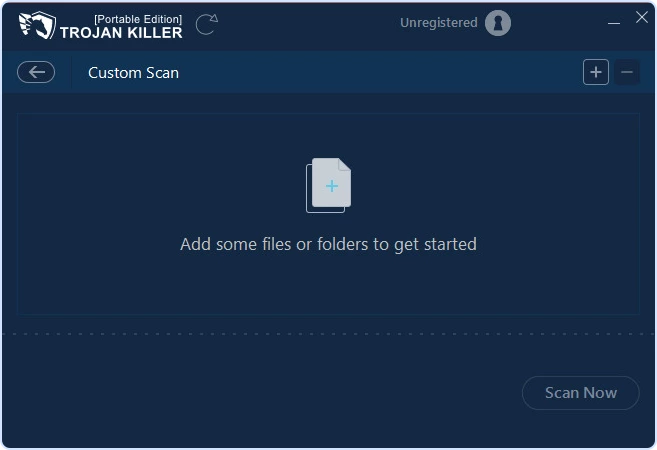
Custom scan – Choose specific files/folders to scan.
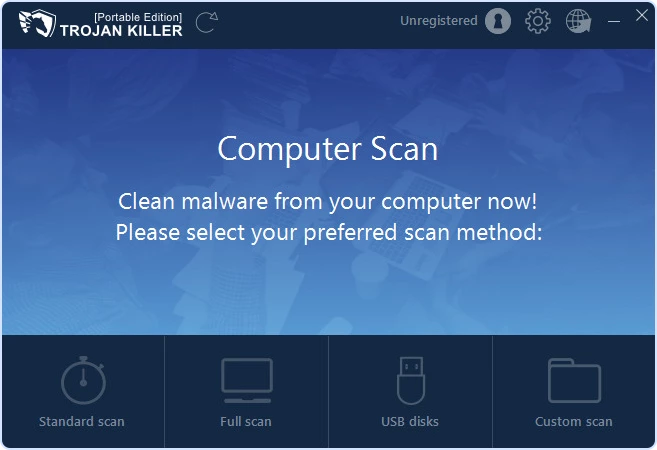

Standard vs. Full scan (what to expect)
Standard: quickest; good for routine checks and most adware/hijacks.
Full: slower; best for stubborn or deeply hidden threats. You can keep working while it runs.
Threat definitions update automatically at startup. If prompted, let the updater finish for best detection.
How do I start a scan?
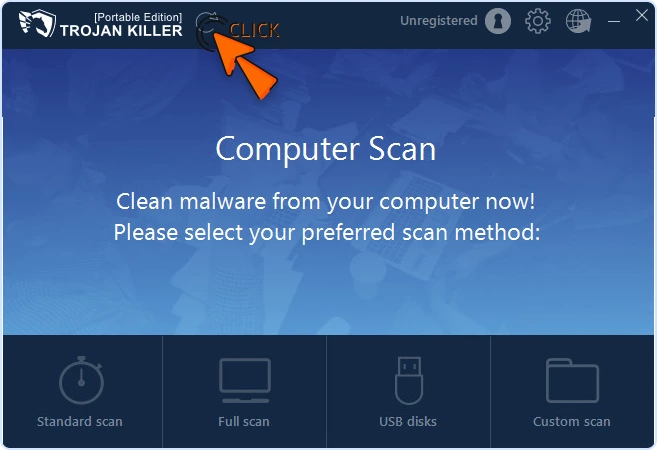
Open Trojan Killer and choose your scan type on the main screen.
Click Standard Scan and let it run.
When it completes, review the results (see next section).
Custom Scan
Choose Custom scan if you want to target a folder or a few files (e.g., Downloads). Add the items, then Scan now.
USB Disks
Connect your USB drive, open USB disks, select the device, and Scan now.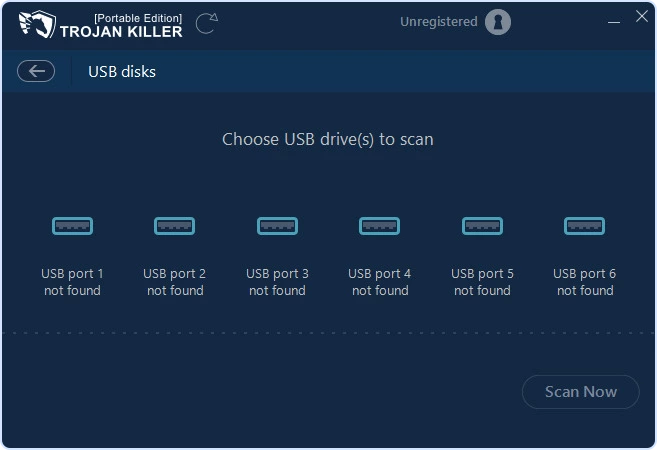
How do I remove detected threats?
When a scan completes, you’ll see the results: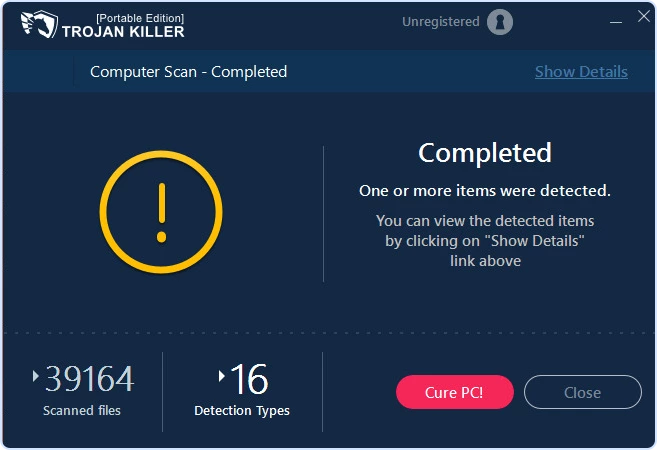
Click Show Details to view items.
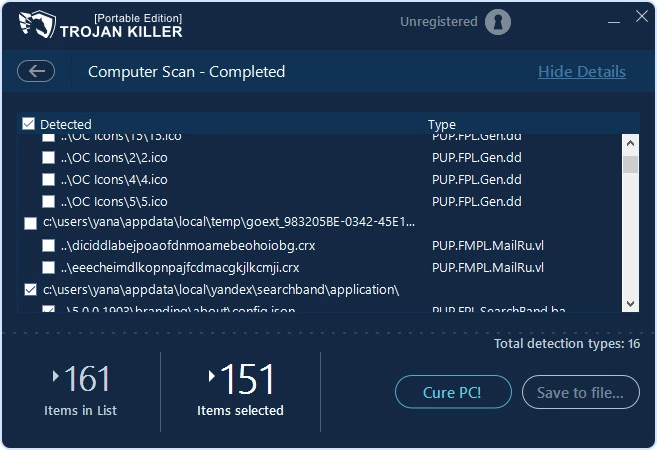
Keep the checkmarks on items you want to remove (recommended).
Click Cure PC to quarantine/remove them.
If prompted to reboot, please do—some fixes finalize after restart.

You can also click Save to file… in the details window to export the results to a report.
What else can I do with Trojan Killer?
Reset Browser Settings: After cleaning, restore your homepage, search engine, and proxy/HOSTS settings if they were changed.
Open Trojan Killer → click Reset Browser Settings (top-right toolbar) and follow the prompts.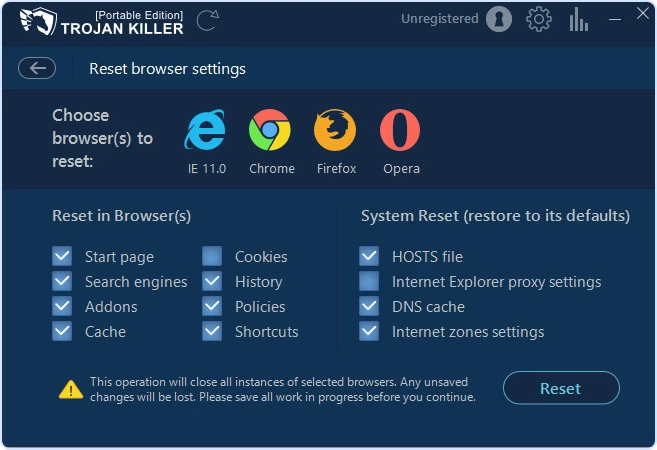
Keep definitions fresh: Let updates complete before a scan for the best detection coverage.
Quick tips
Slow scan? Use Standard for routine checks; reserve Full for deep cleaning.
False positive concerns? Save the report and contact Support—we’ll review quickly.
Portable Edition: Use the same USB to keep your settings and activation consistent across PCs.
Need help?
Send Support: a short description, the Save to file… report (if available), and a screenshot of the results window. We’ll help you resolve anything that remains.