
Use Reset Browser Settings to undo changes made by adware or unwanted extensions—like a hijacked homepage, new-tab redirects, or a switched default search engine.
What it fixes
Homepage, new-tab page, and default search engine
Extensions/add-ons that caused issues
Proxy settings and HOSTS file entries
Optional cleanup: cookies and browsing history
The tool resets settings only. It does not uninstall your browsers or delete personal files.
Open the tool
In Trojan Killer, click Reset Browser Settings (top-right toolbar),
or launch the Reset Browser Settings shortcut from your desktop.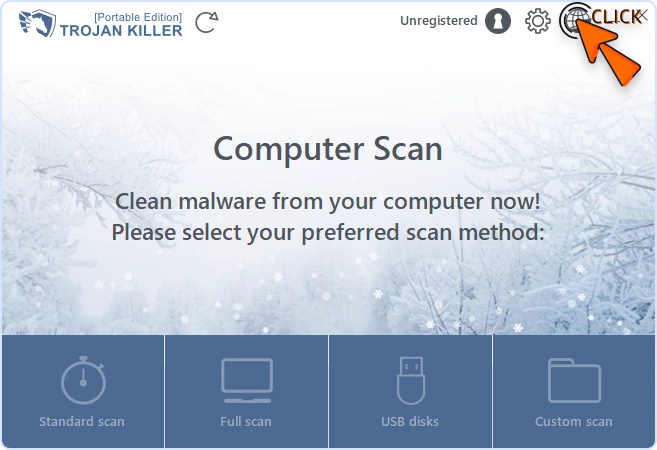
Reset steps
Choose browsers
Click the browser icons you want to reset. A colored icon means selected.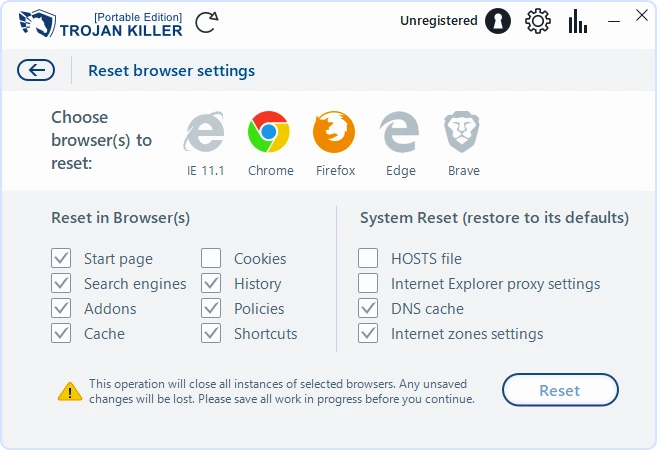
Pick what to reset
Check the options you need: Start page, New tab, Search engine, Addons, Cookies, History, Proxy settings, HOSTS.Recommended for hijacks: Start page, New tab, Search engine, Addons, Proxy settings, HOSTS.
Leave Cookies/History unchecked if you want to keep site sessions.Run the reset
Click Reset. Open browsers will close while changes are applied.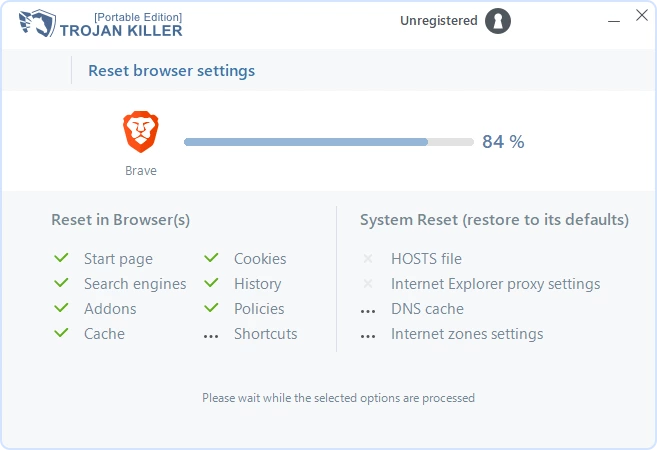
Review the report
When finished, a brief report shows what was fixed. You can open your browser and test right away.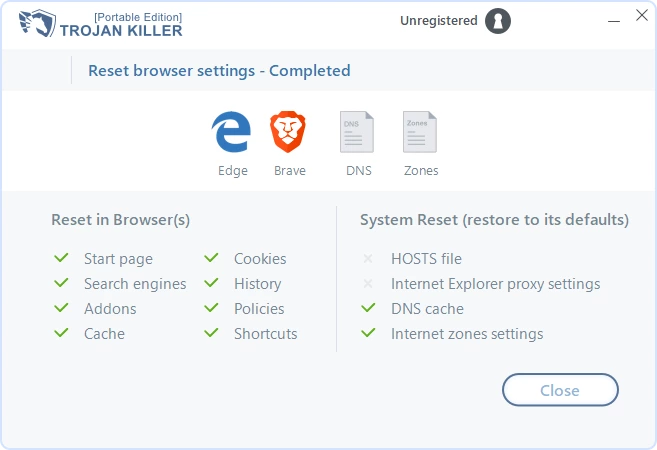
After the reset
Reinstall only the extensions you trust from the official store.
If you use a company proxy, you may need to re-enter those settings.
If a site logs you out, just sign in again.

Tips
If the problem returns, run a Full scan in Trojan Killer to remove the program that keeps changing your settings.
For the Portable Edition, run the tool the same way while the USB is connected.