
Enable protection from the Protection tab. The first start includes an explanation of DNS processing and Android's VPN connection request.
Start protection
- Open Web Protection. For a new installation, tap Try free for 14 days when offered. If you already have access, choose Already subscribed? Sign in and complete the browser sign-in and device connection.
- If the app returns from sign-in with protection off, tap Turn on protection or Turn on. Account connection alone does not start filtering.
- Read and accept the in-app protection explanation.
- If another VPN is active, decide whether to disconnect it before continuing. Choosing Not now leaves Gridinsoft protection off.
- Approve Android's VPN connection request. Wait while the app connects and checks the DNS route.
- Confirm that the screen says Protection is ON.
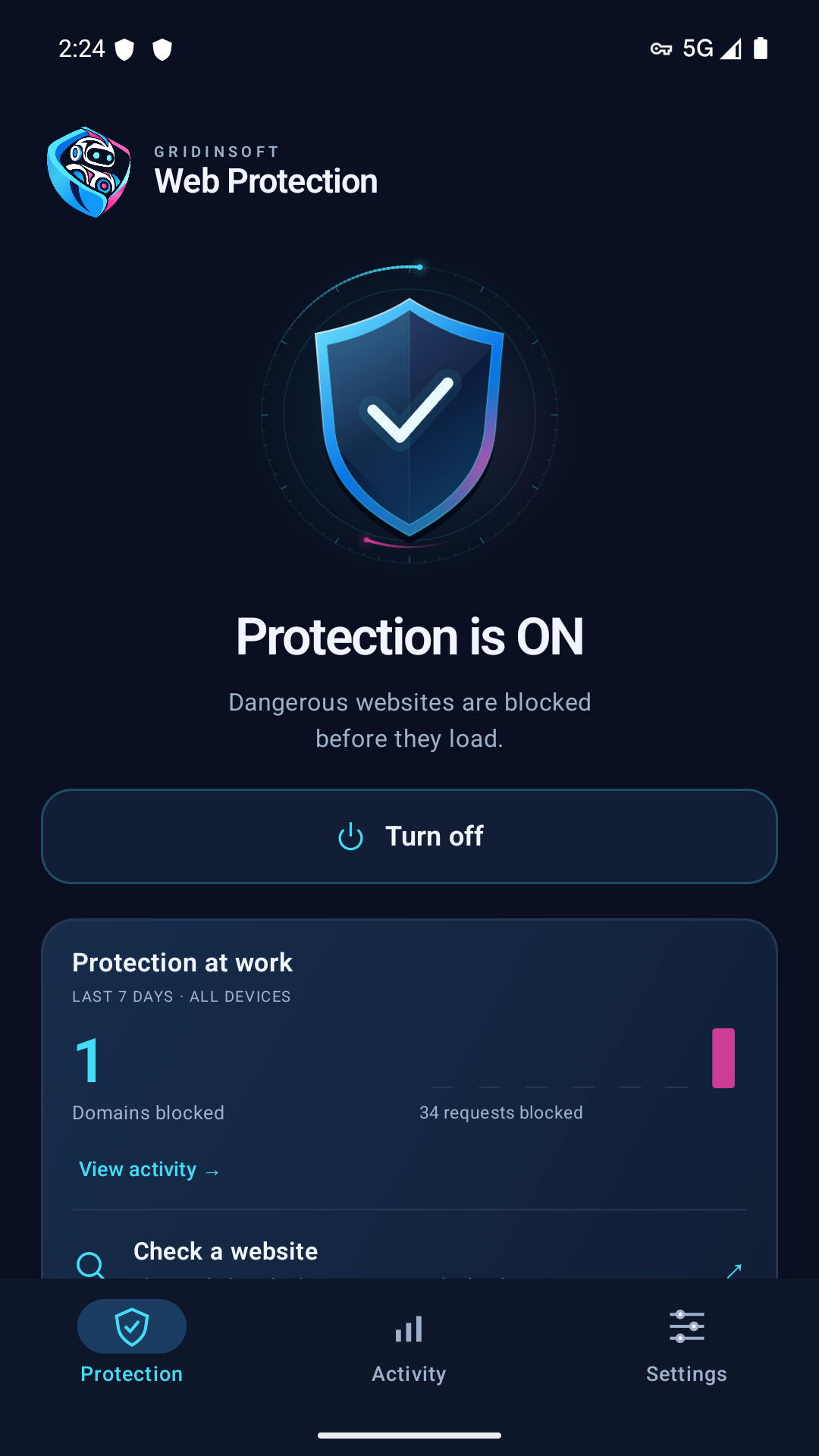
If you dismissed a permission request
Return to the app and tap the start control again. Canceling a prompt does not activate protection. If the app reports a custom Private DNS or another VPN conflict, follow the DNS and VPN compatibility guide.
Turn protection off
Tap Turn off and wait for the off state. Domain filtering stops, but your saved access remains. Stopping protection does not cancel a paid subscription or delete your account.
Reopen the app to check its state after restarting the phone, force-stopping the app or using a different VPN. Do not assume it restarted automatically. The decorative map and past activity do not indicate current coverage.